
How-to guides · Business Brain · Full walkthrough
Business Brain: the full walkthrough
What it does, how to set it up with the Kit or what the Install sets up for you, daily use, fixing and updating answers, edge cases, privacy and the weekly check.
Narrated video with captions, 8 min 36 s. Made with a fictional company, Brightline Heating & Air (sample · fictional business). Read the transcript · Download the step-by-step PDF
Step by step
This is the full walkthrough for your Business Brain. Use the chapters to jump to what you need. We'll use Brightline Heating and Air, a sample business, for every example.
What it does and what it won't do
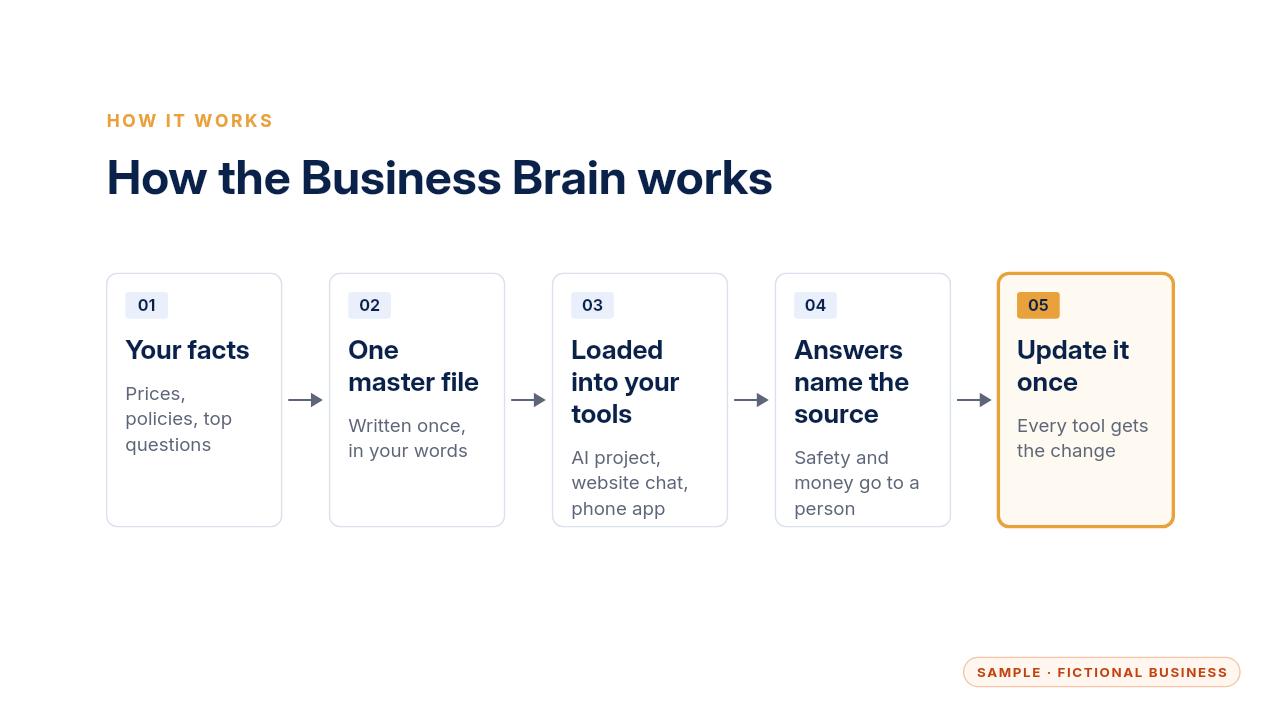
Here's how it works. You keep one file with your services, prices, policies and answers. That same file is loaded into each tool your team uses, so every tool answers from your facts.
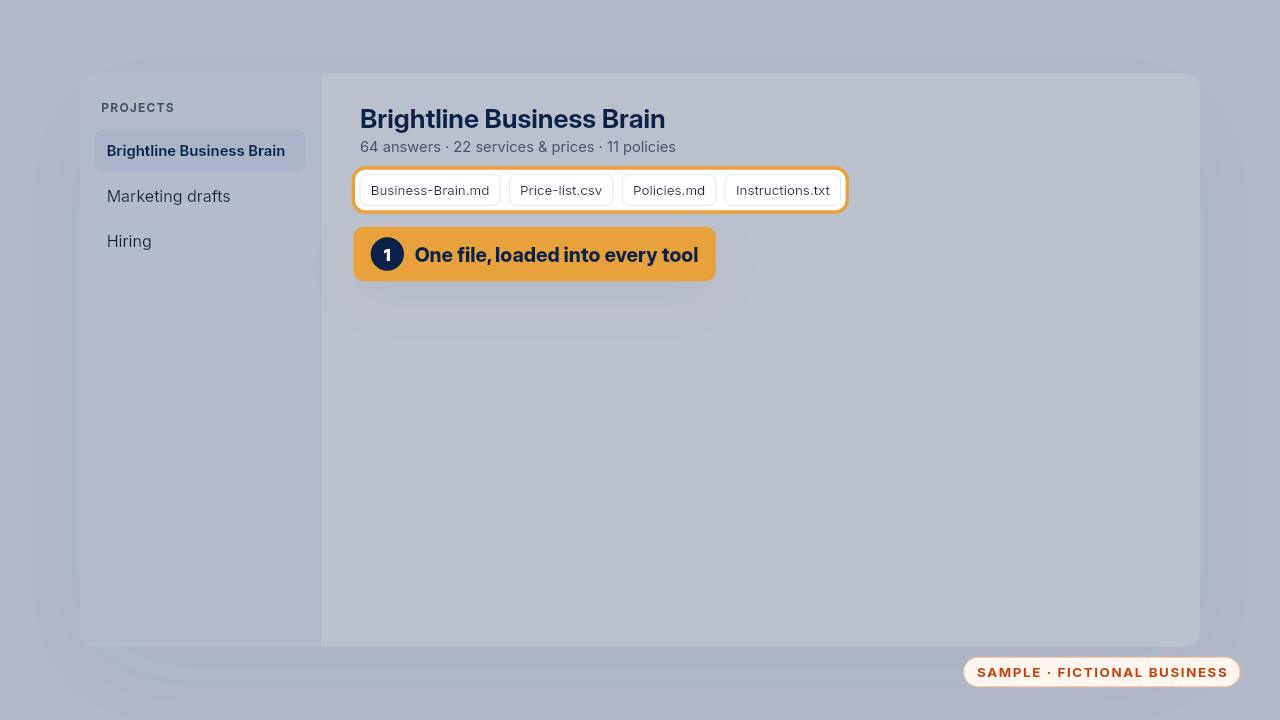
The tools can be a ChatGPT project, a Gemini Gem, Microsoft Copilot, your website chat, your phone answering app or a team text line. Change the file once, reload it, and they all change.
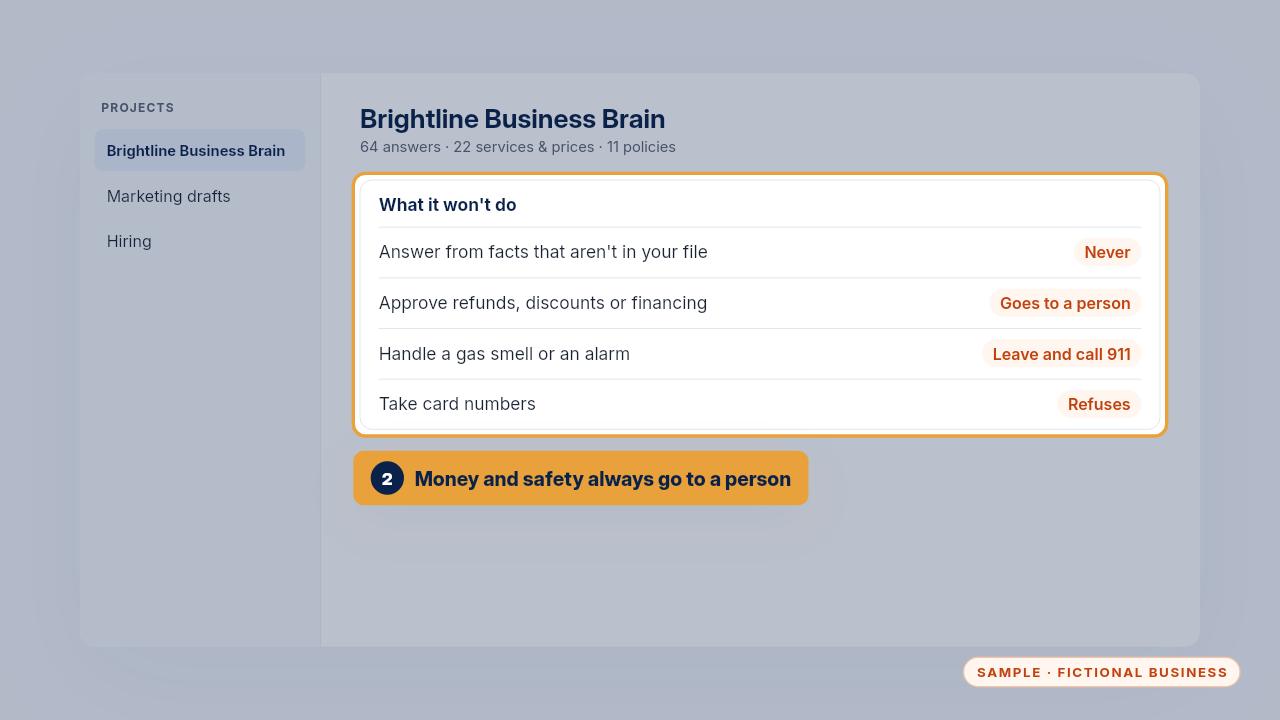
It only knows what's in your file, and it should say so when something isn't there. It never approves refunds, discounts or financing. A gas smell or an alarm always means leave and call nine one one.
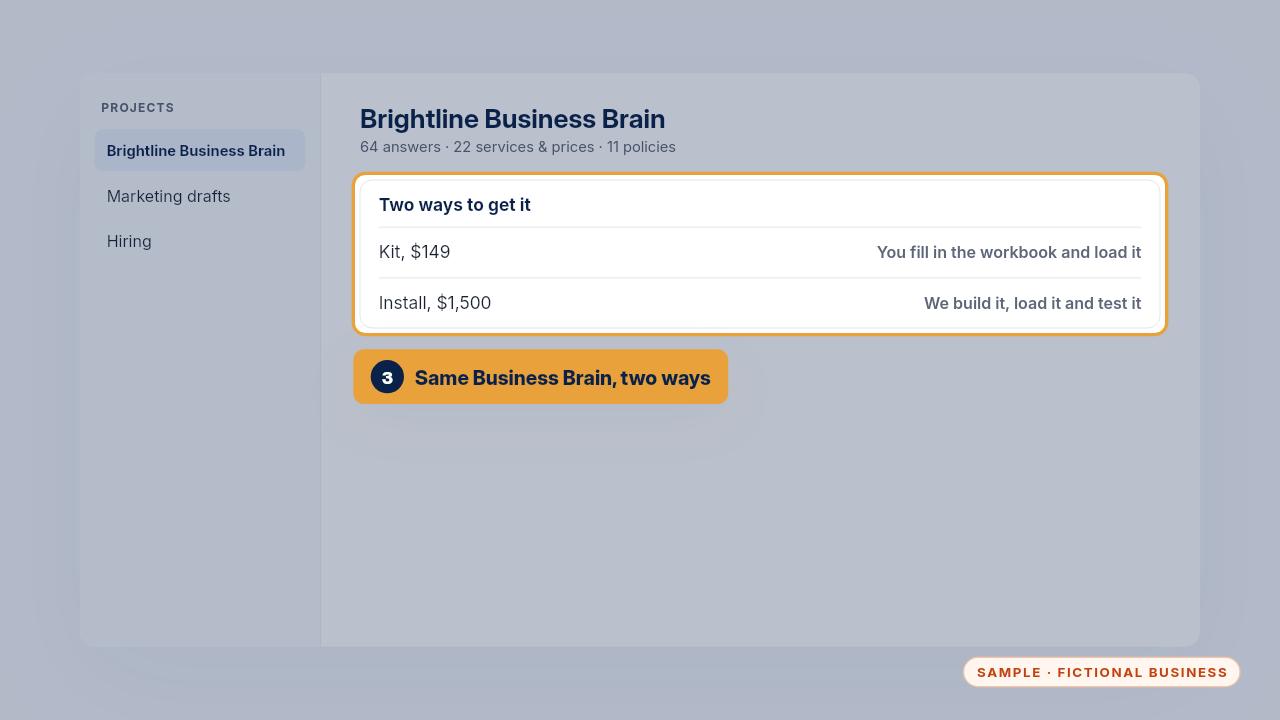
With the Kit, you fill in the workbook and load it yourself. With the Install, we build it from your documents, load it into your tools and test it with you. The next chapter covers both.
Setup, step by step
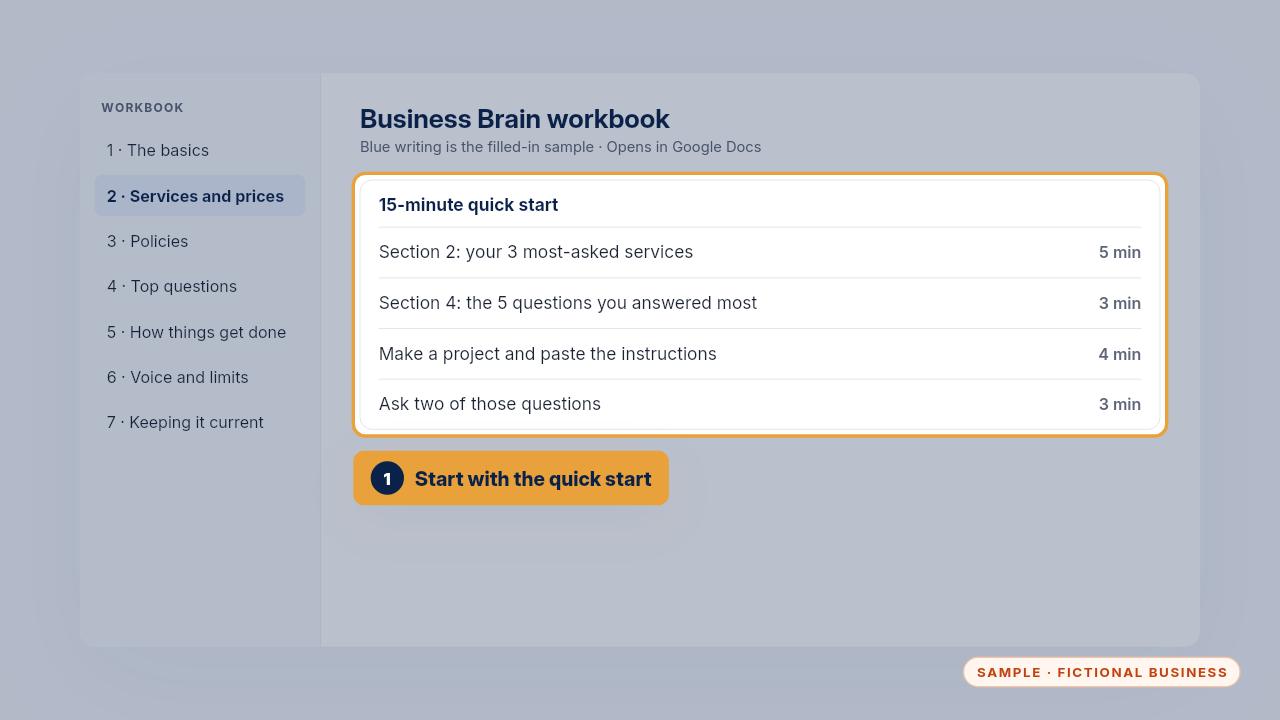
With the Kit, start with the fifteen minute quick start. Write your three most asked services and your five most common questions, make a project, paste the instructions, and ask two of those questions.
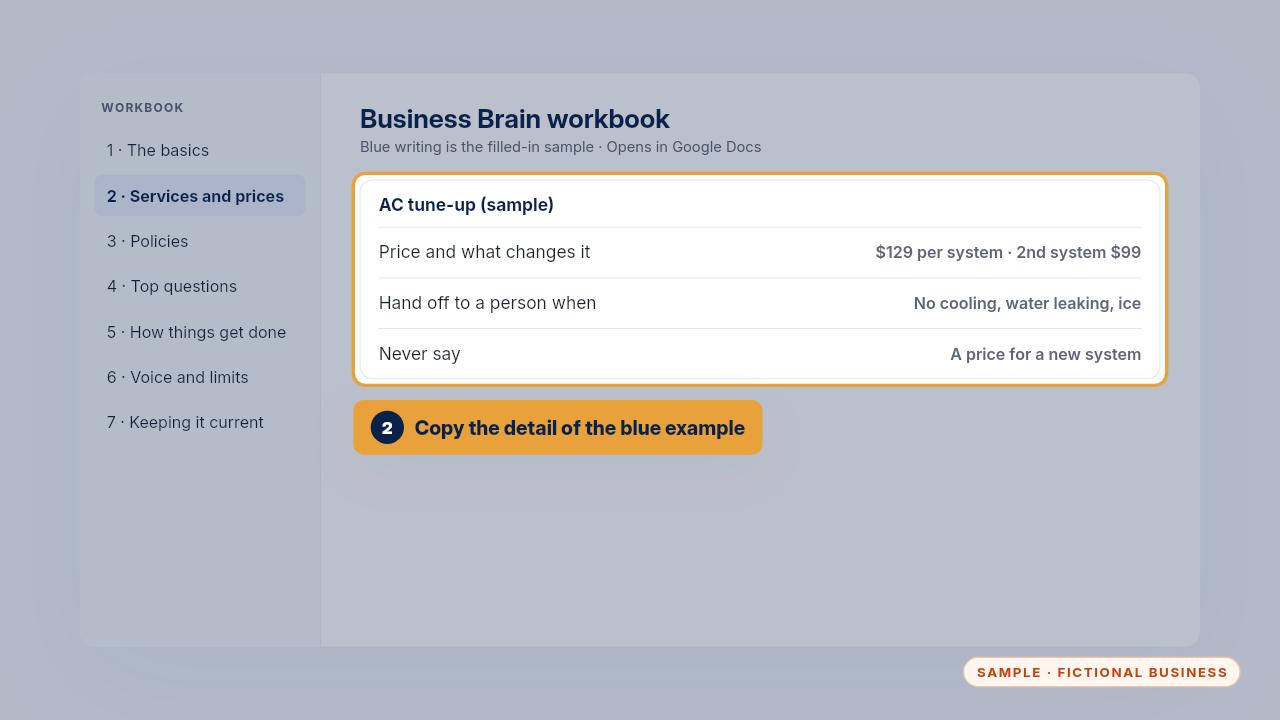
Then fill in the workbook one section a day. The blue writing is a filled in example. Match its detail: a price plus what changes it, when to hand off, and what the AI must never say.
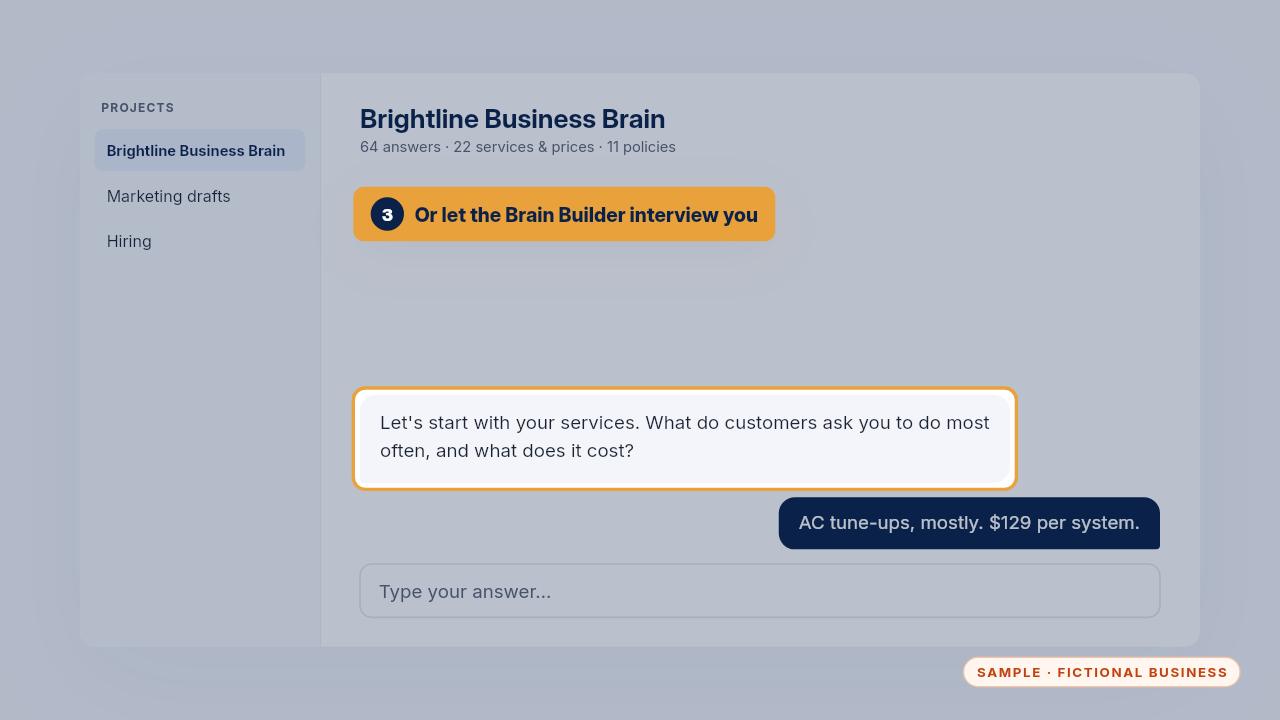
Rather talk than type? Paste the Brain Builder prompt into your AI tool. It interviews you one question at a time and fills in the workbook, section by section. Read what it writes before you keep it.
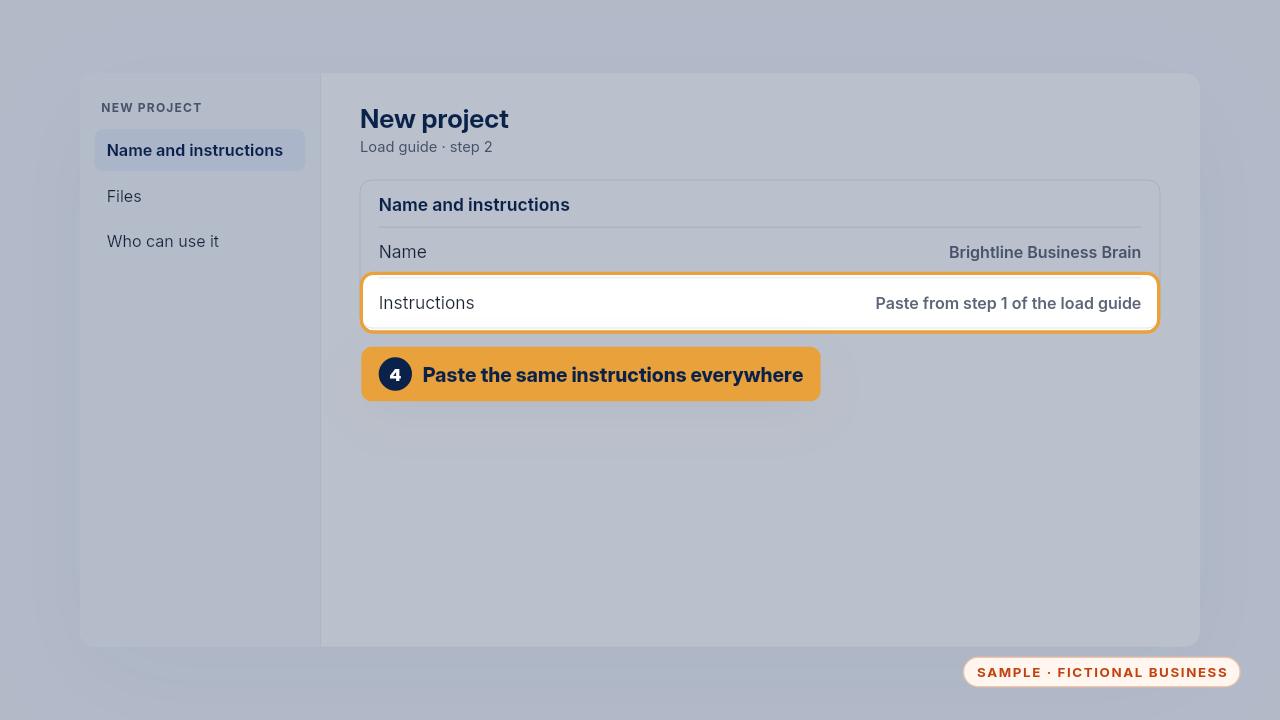
When it's done, save the workbook as one file. That file is your Business Brain. Then follow the load guide. Paste the same instructions into each tool, so every tool answers only from your file.
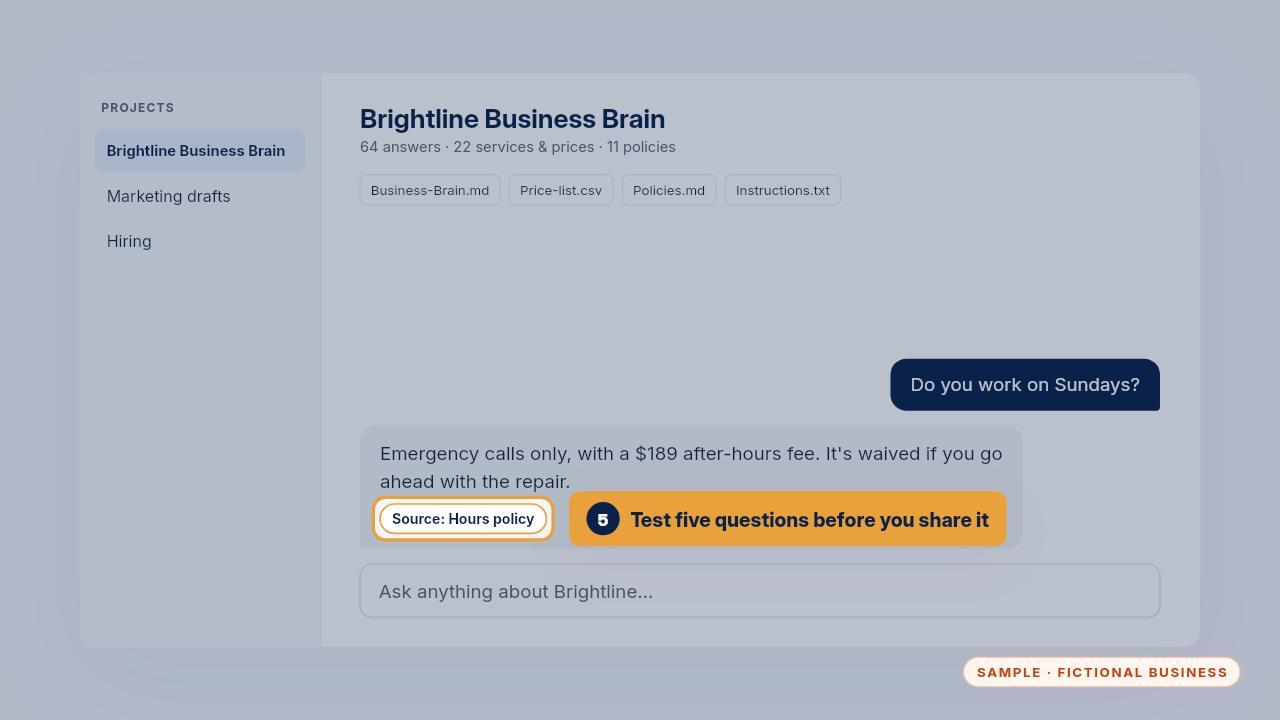
Add the file, then ask five questions from section four of your workbook. Check each answer and its source. Only then share it with your team, and keep public links switched off.
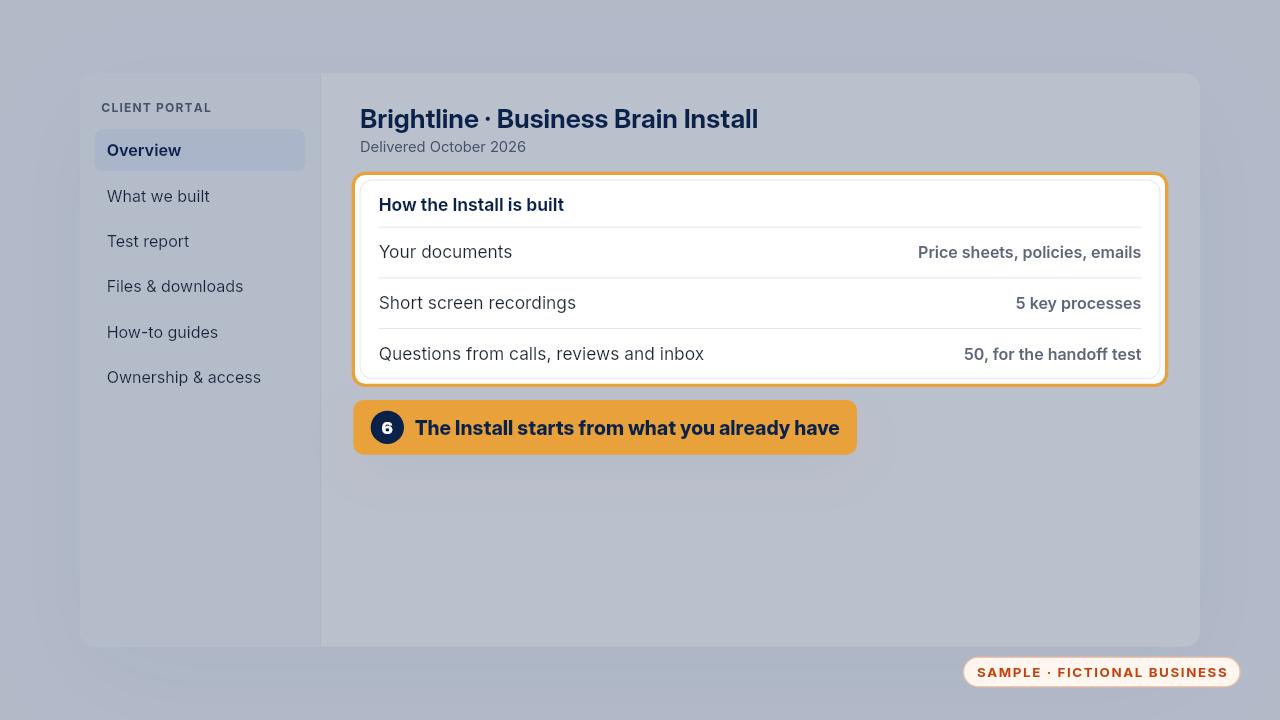
With the Install, you send your documents and your team makes short screen recordings of five key processes. We write the steps, build the file and load it into the tools you chose.
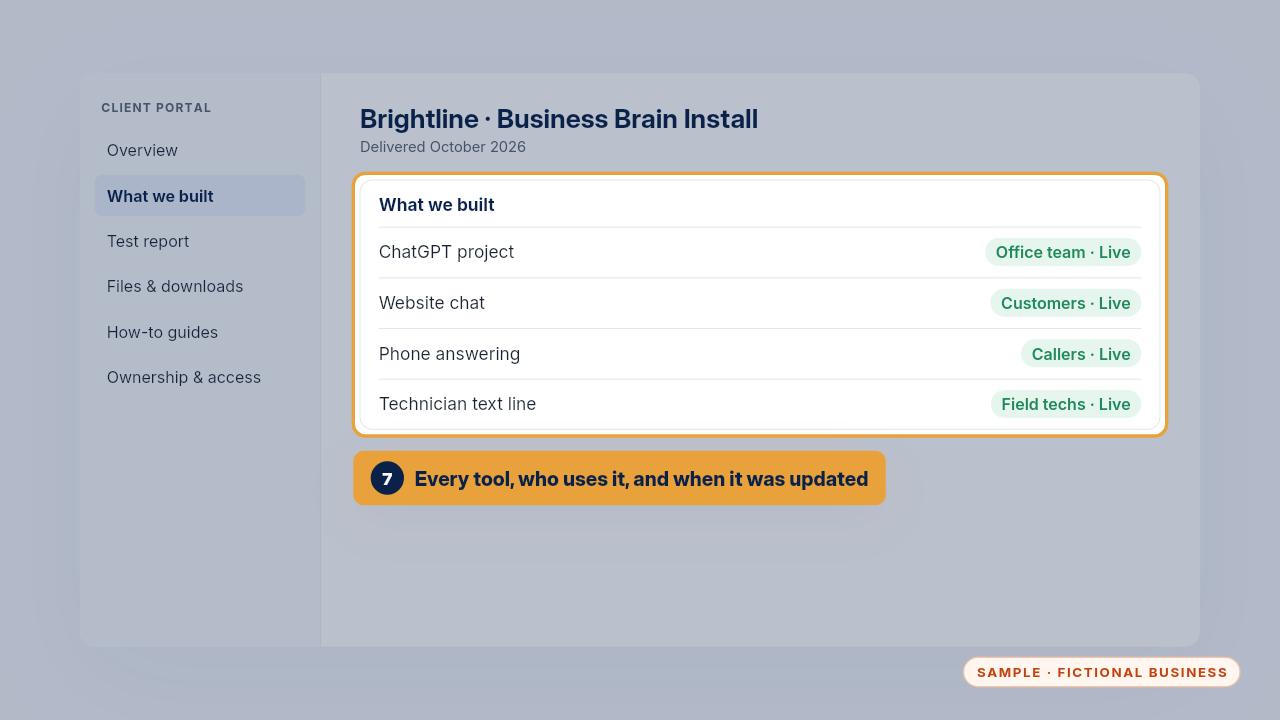
Your client portal shows what we built. For Brightline, that's a ChatGPT project for the office, the website chat, phone answering and a text line for the techs, each with the date it was last updated.
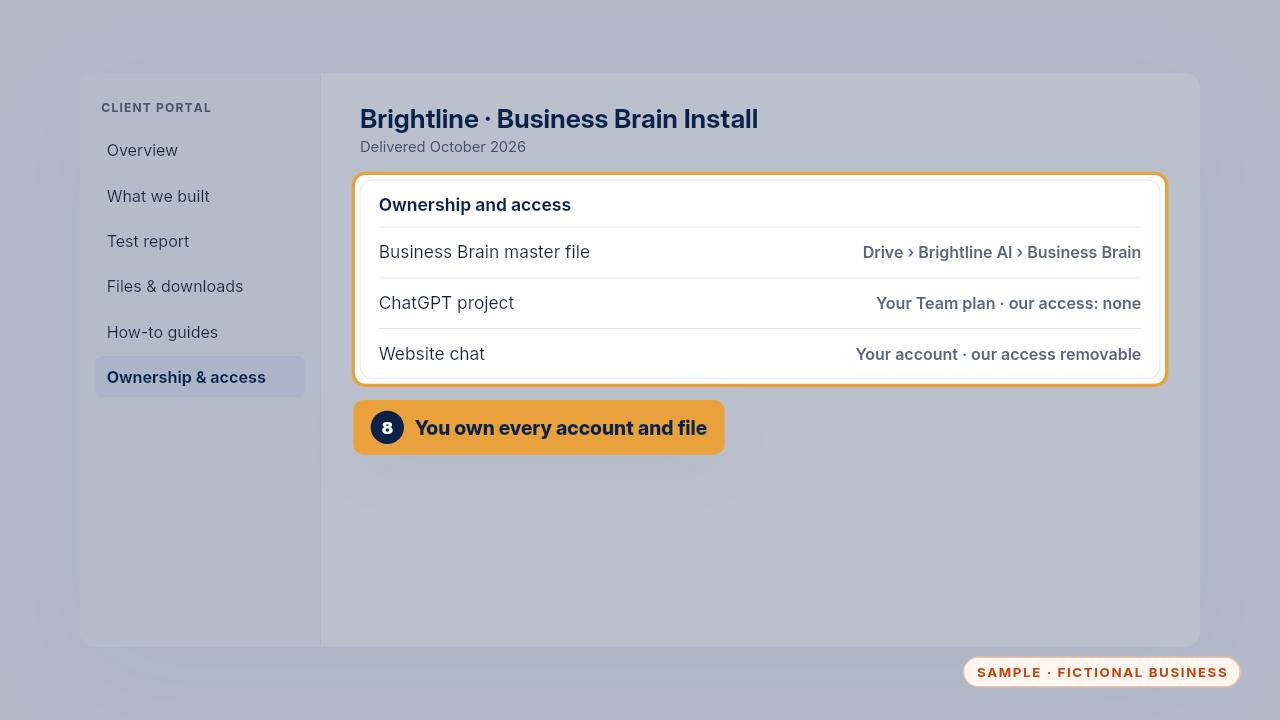
The master file lives in your own Google Drive, and every tool runs in your own accounts. The ownership sheet lists where each one lives and what access we have, so you can remove it.
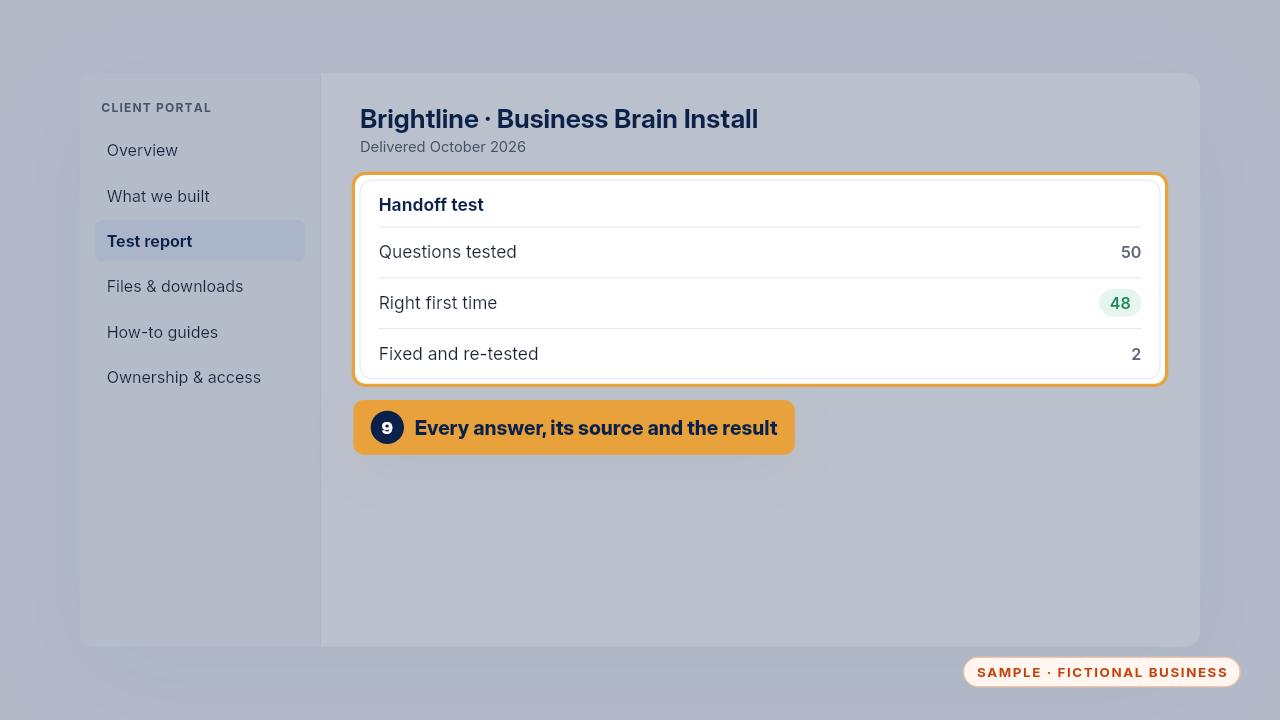
Before handoff, we run fifty questions through it. The test report shows each answer, its source and the result. Anything wrong the first time is fixed and tested again before your team uses it.
Daily use
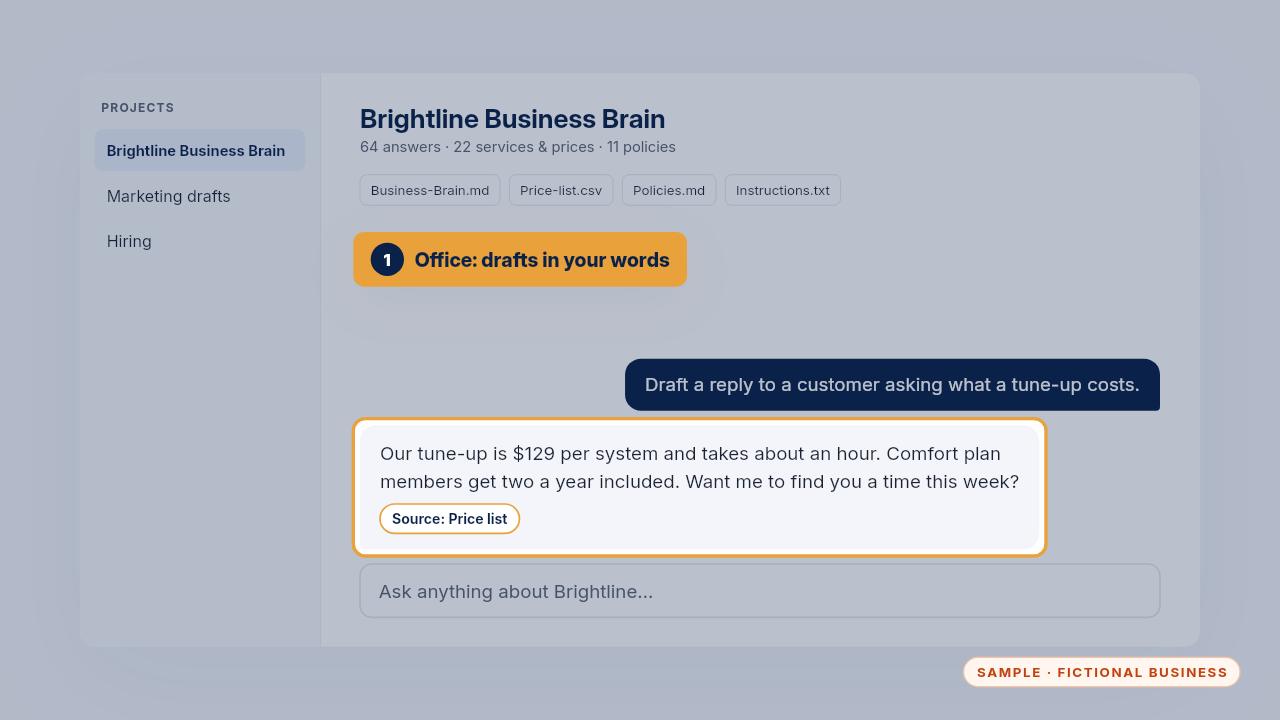
In the office, Maria asks for a reply to a customer who wants a tune-up price. The draft uses Brightline's own words and price. She reads it, checks the source, and sends it.
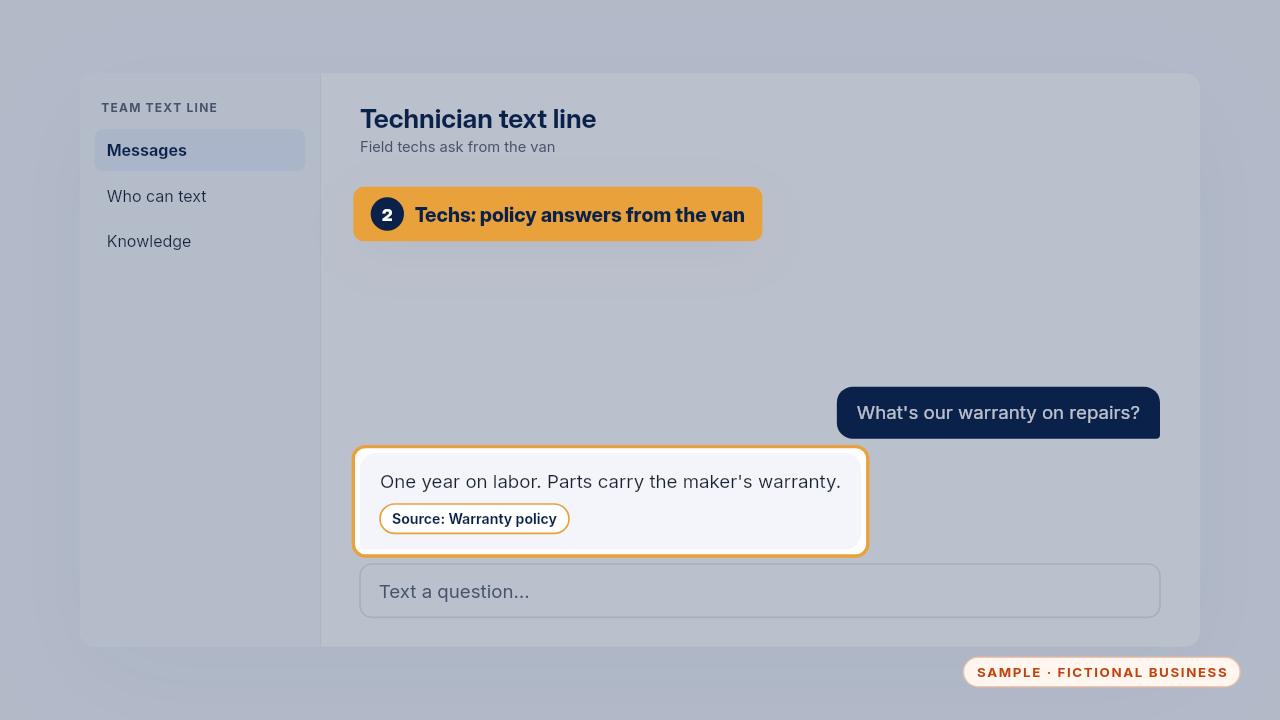
In the field, a technician texts the team line to check the repair warranty before he quotes it. He gets the answer from the warranty policy in seconds, without calling the office.
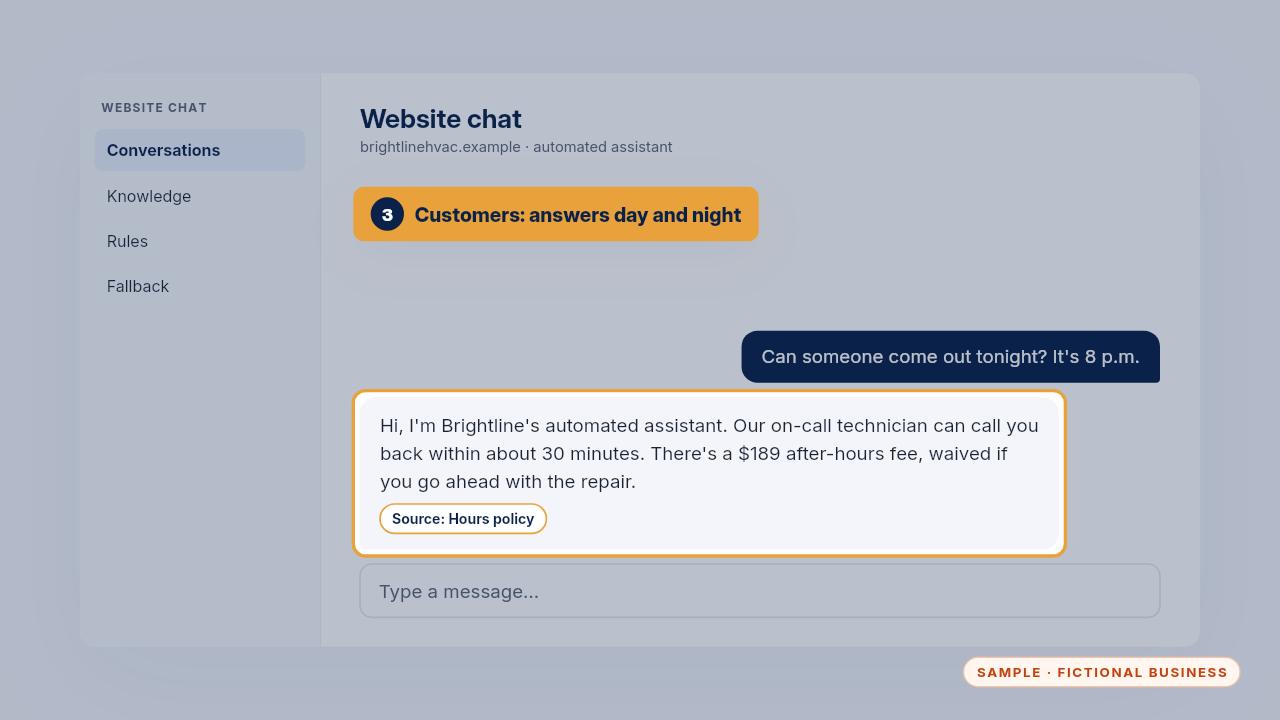
On the website at eight at night, a customer asks if someone can come out. The chat says it's an automated assistant, explains the after hours fee, and offers the on-call callback.
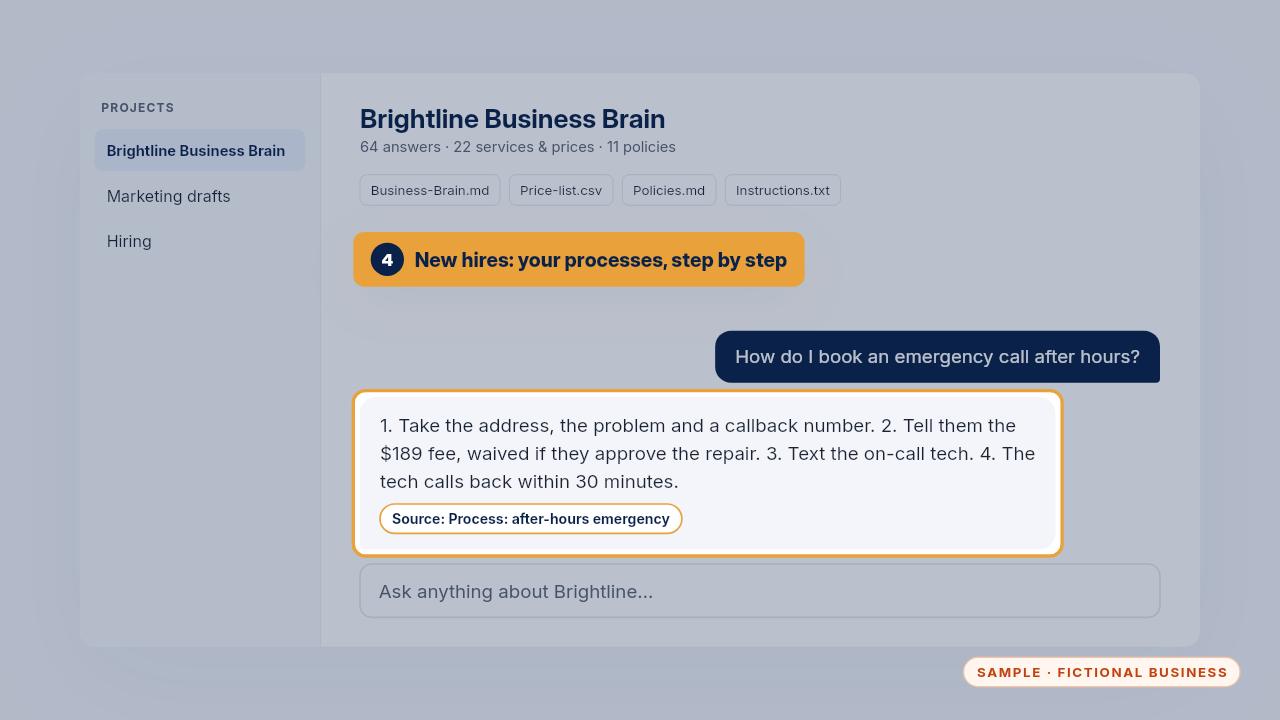
A new hire asks how to book an emergency call after hours. The answer is the process from section five, in numbered steps, the way your best person would explain it.
When it gets something wrong
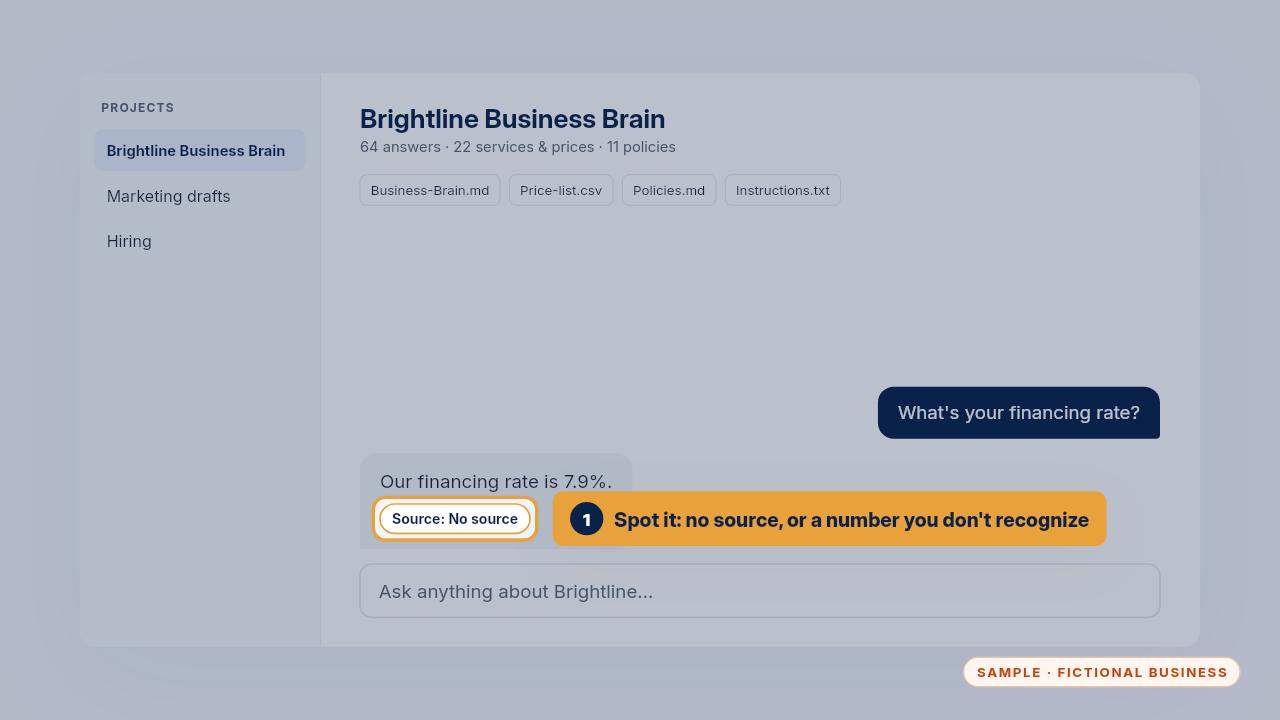
Here's a wrong answer. It quotes a financing rate, and there's no source. Brightline's rates come from its lender, so no rate should ever be quoted. The missing source is your clue.
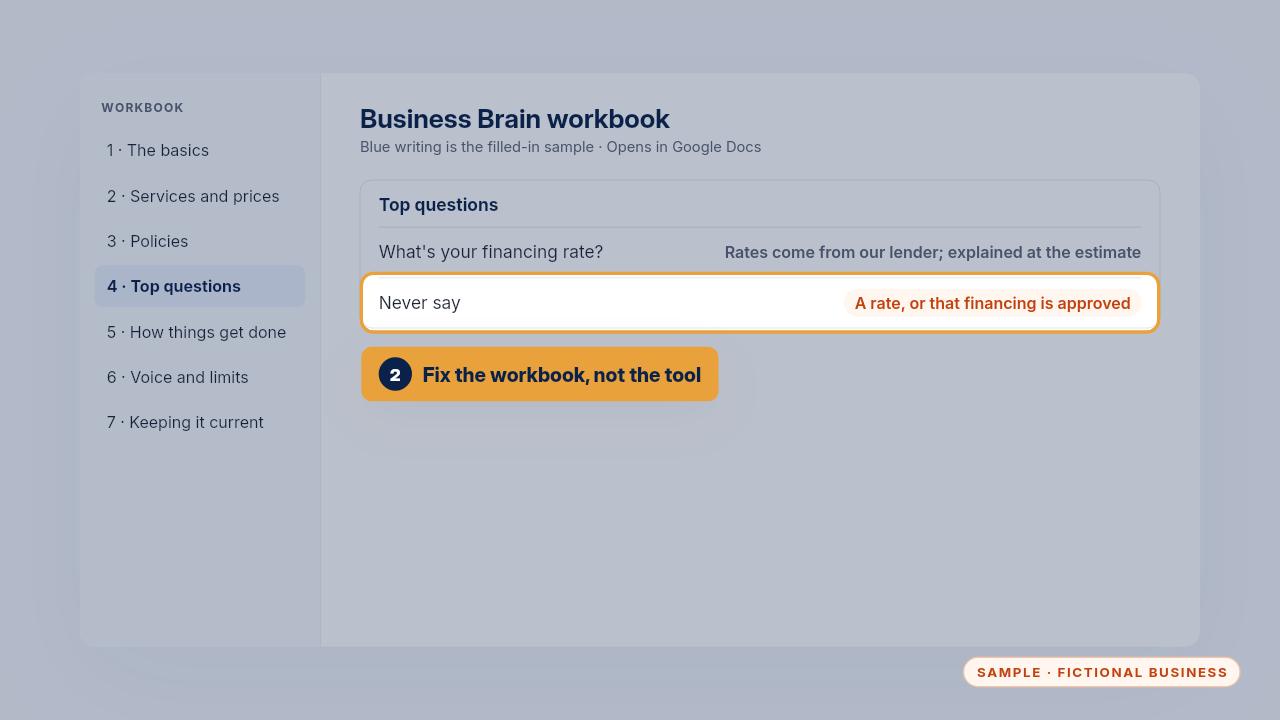
Fix the workbook, not the tool. Add the question to section four with the right answer, and write what it must never say. Here, that's a rate, or that financing is approved.
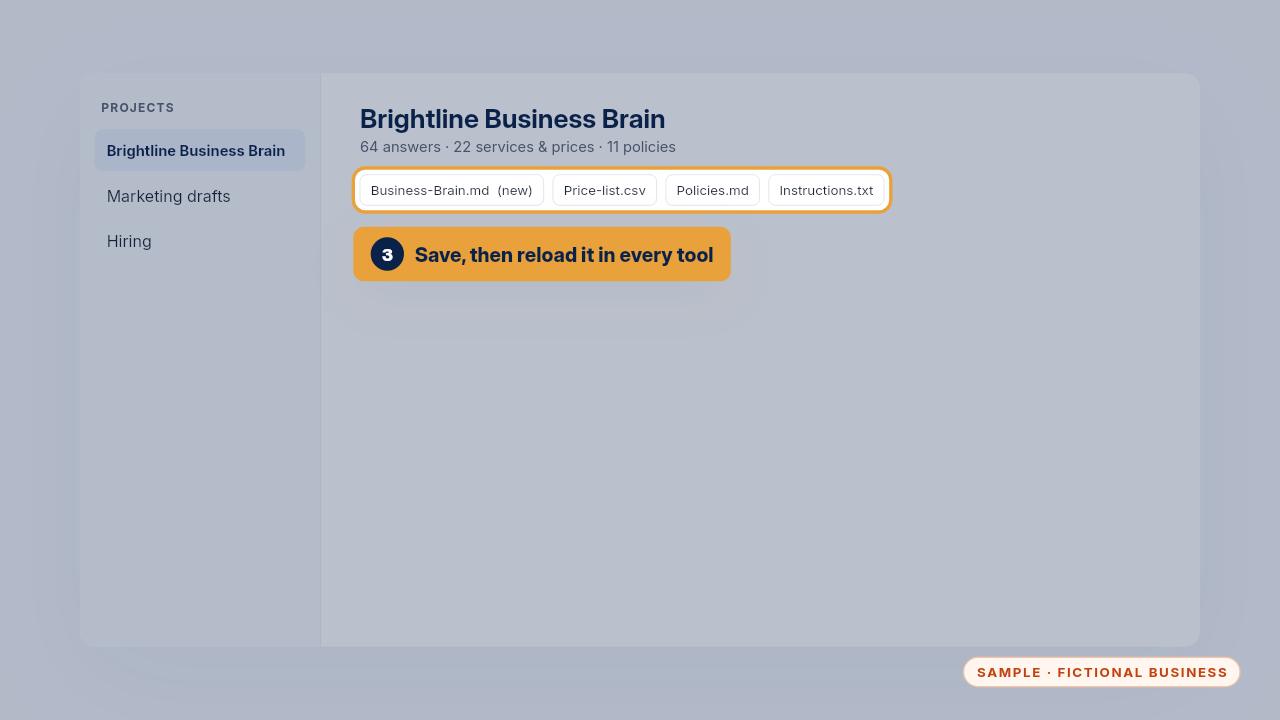
Save the file and reload it in every tool, removing the old one. If you skip a tool, it keeps giving the old answer.
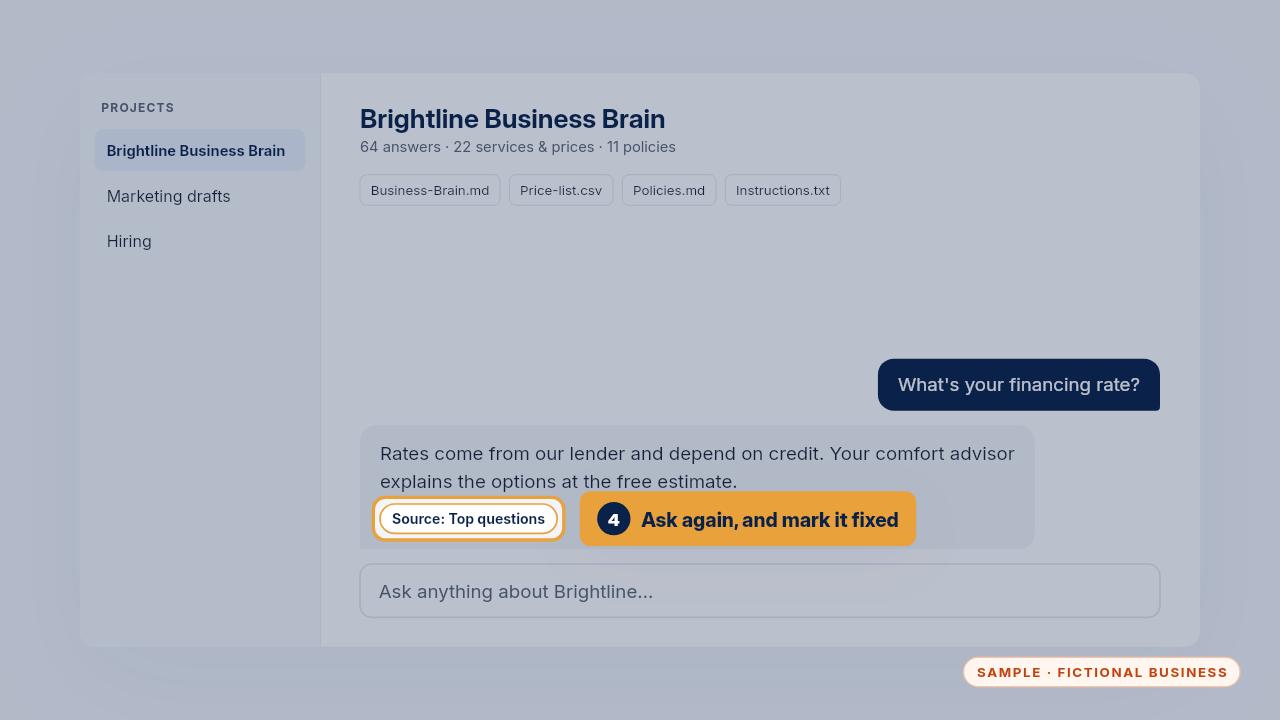
Then ask the same question again, worded the same way and one other way. When it answers from the file, mark it fixed in your test list.
Updating prices, hours and services
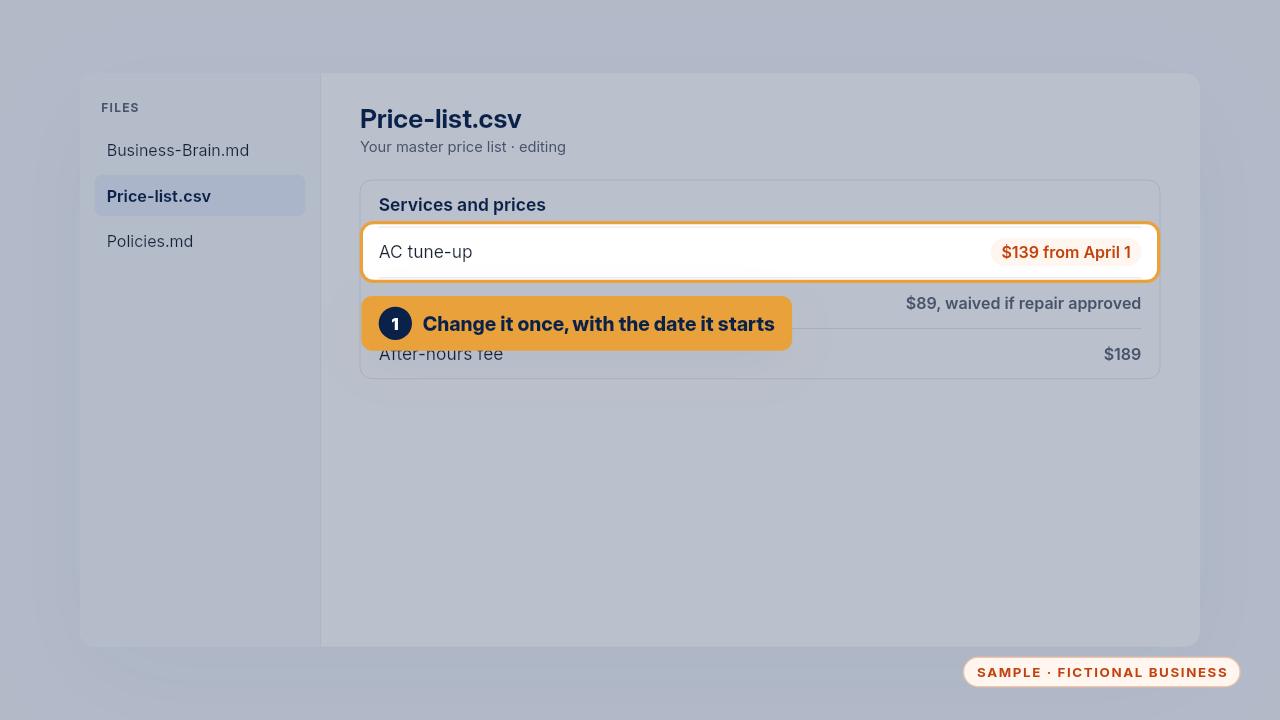
When a price changes, edit it once in your master file, and add the date it starts. If the old price still applies to jobs already booked, say that too.
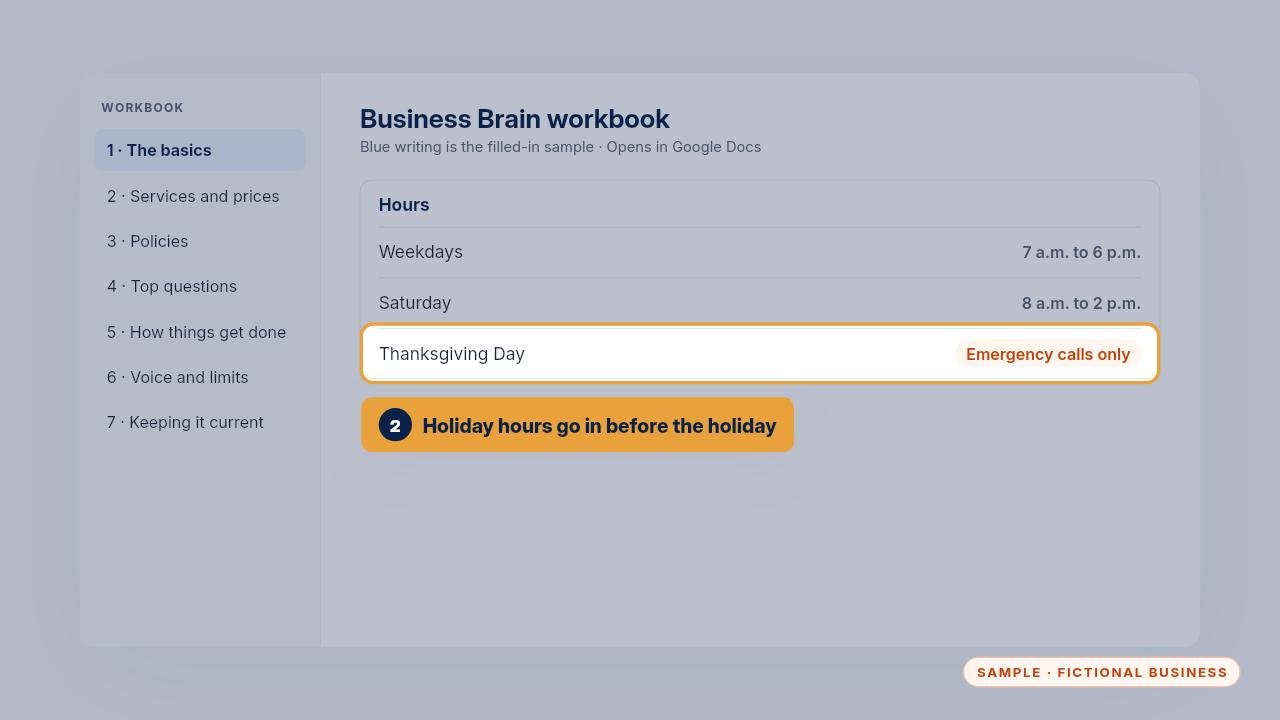
Hours work the same way. Add holiday hours a week ahead. A new service gets its own box in section two, with its price, what changes it, and when to hand off.
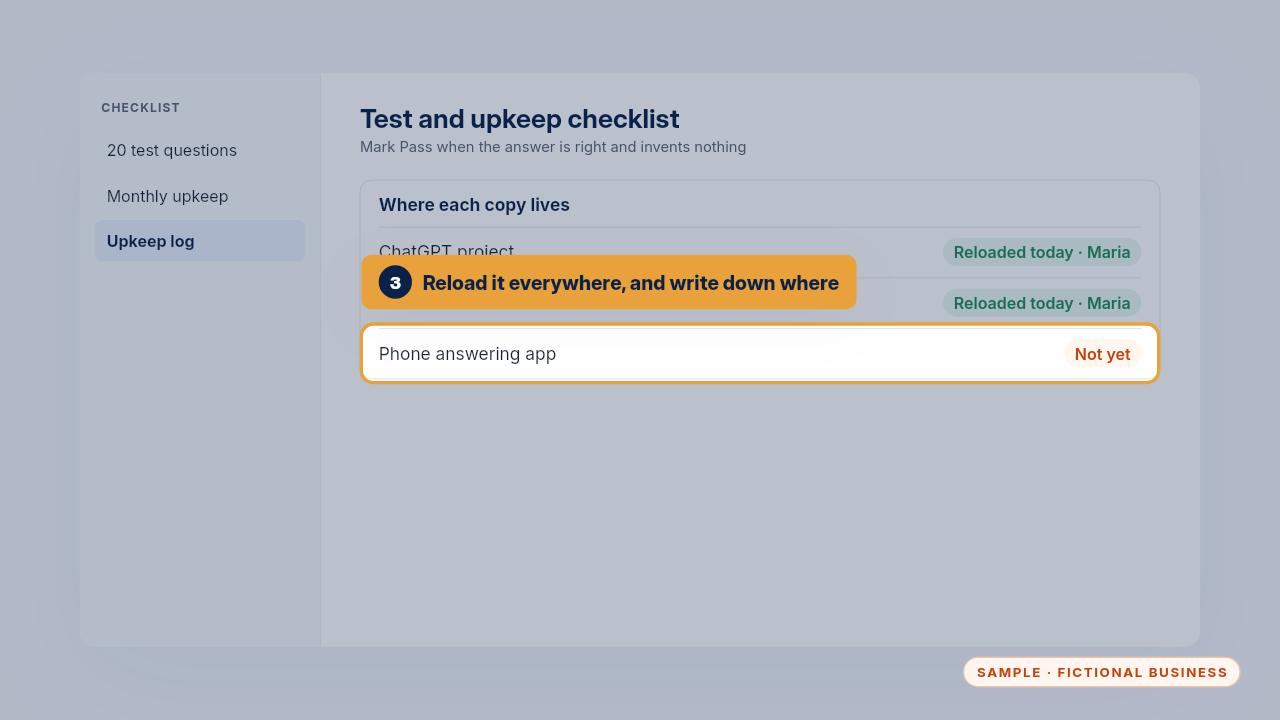
Reload the file in every tool. The table in the load guide lists where each copy lives and who reloads it. Here, the phone app hasn't been done yet, so it's still quoting the old price.
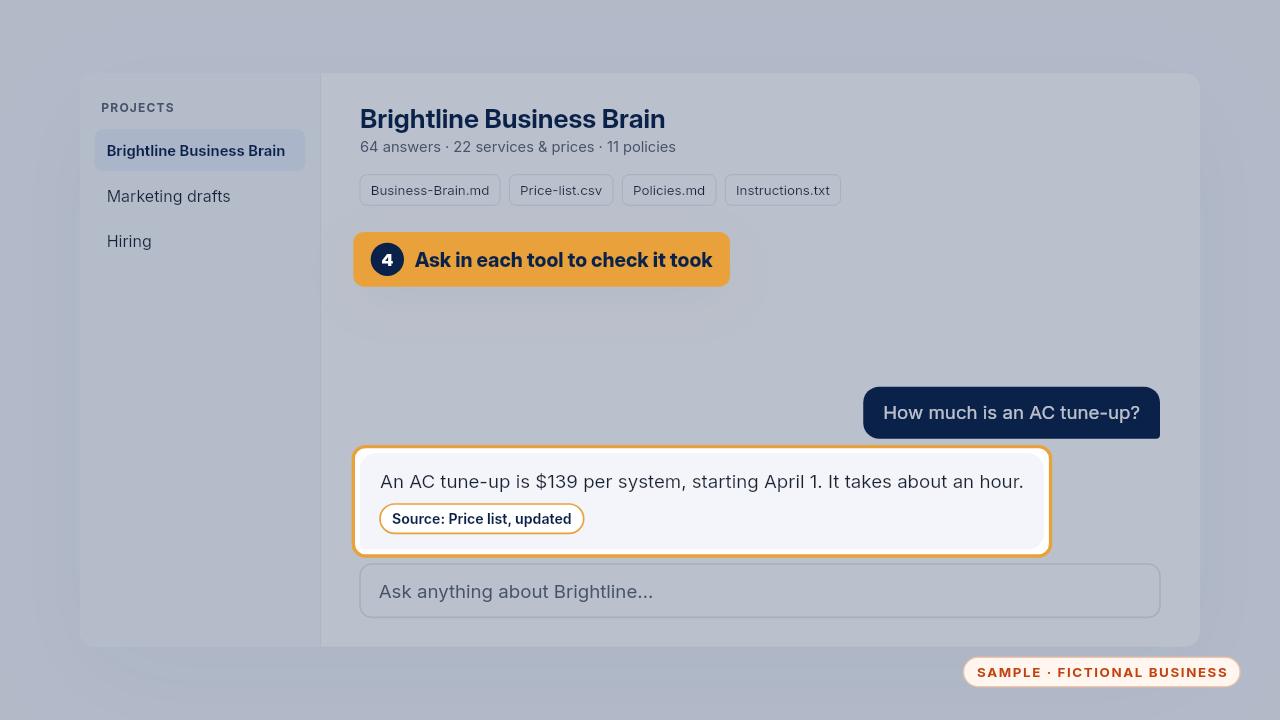
Check that the change took by asking the price question in each tool. With the Install, add the Keep It Running care plan and text us the change. We update every tool for you.
Edge cases
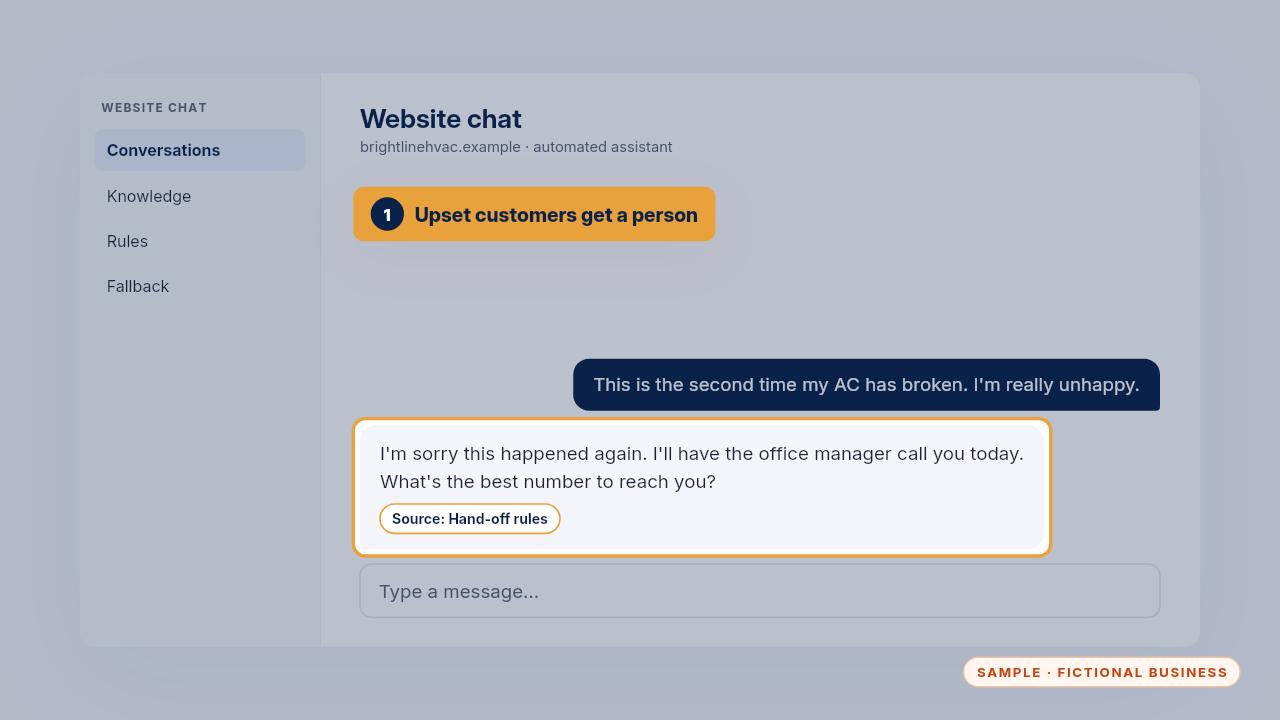
An upset customer gets one short apology and a person. The instructions in your kit tell it to apologize once and offer someone, rather than argue or promise a fix.
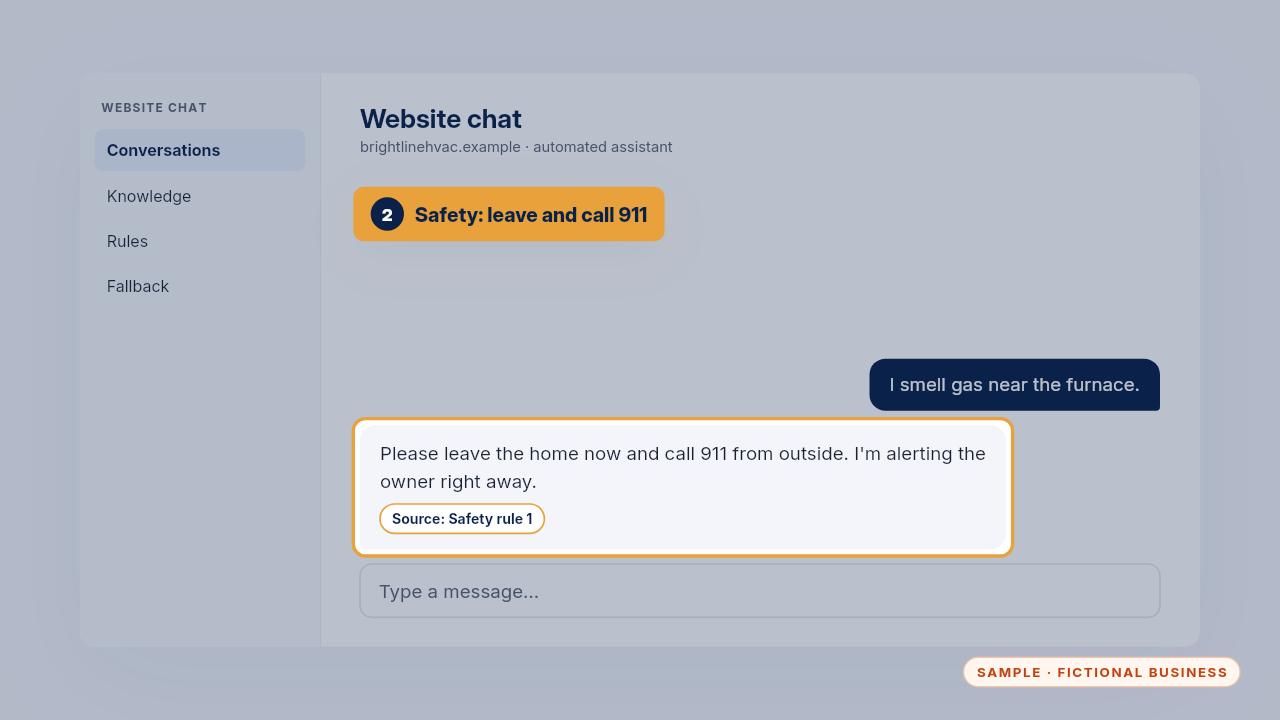
Safety questions get one answer only. A gas smell, smoke or a carbon monoxide alarm means leave the home and call nine one one, then the owner is alerted. It never books these as a service call.
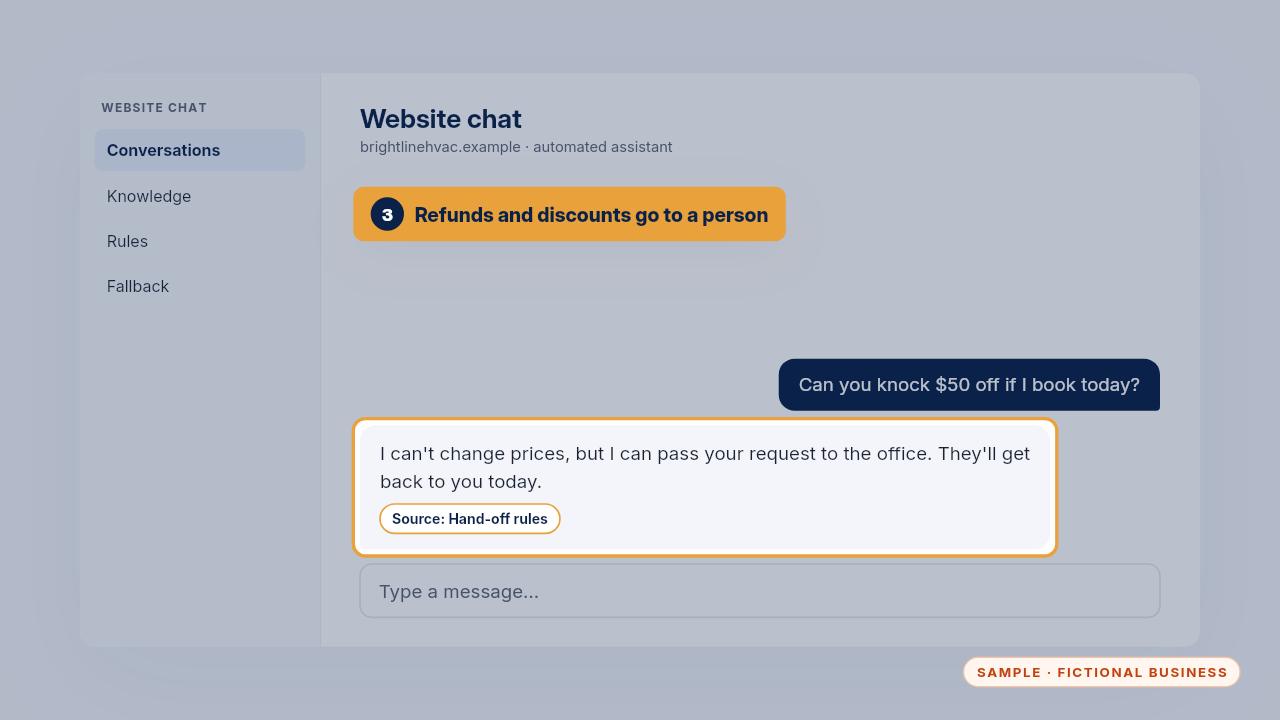
Money questions go to a person too. A discount, a refund or a billing dispute is passed to the office. The AI can collect the details, but it never agrees to anything.
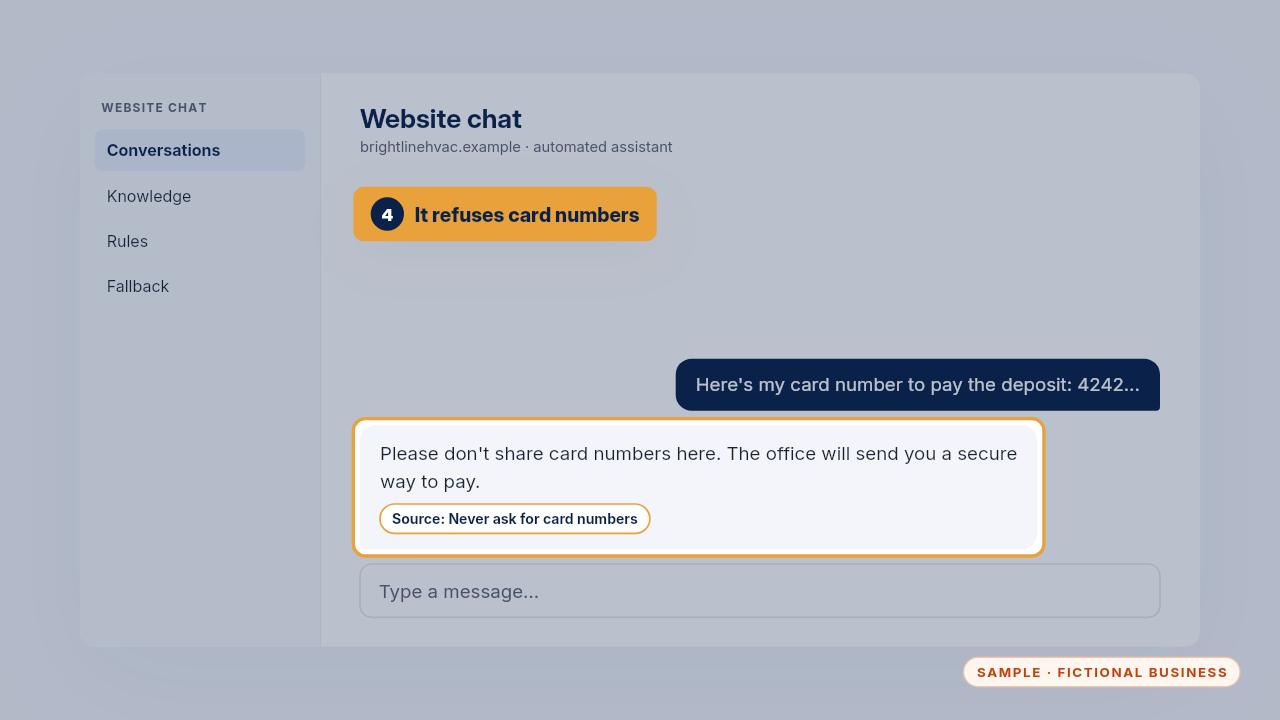
If someone types a card number, it refuses and points them to a safe way to pay. The instructions say never to ask for or repeat card numbers, passwords or health details.
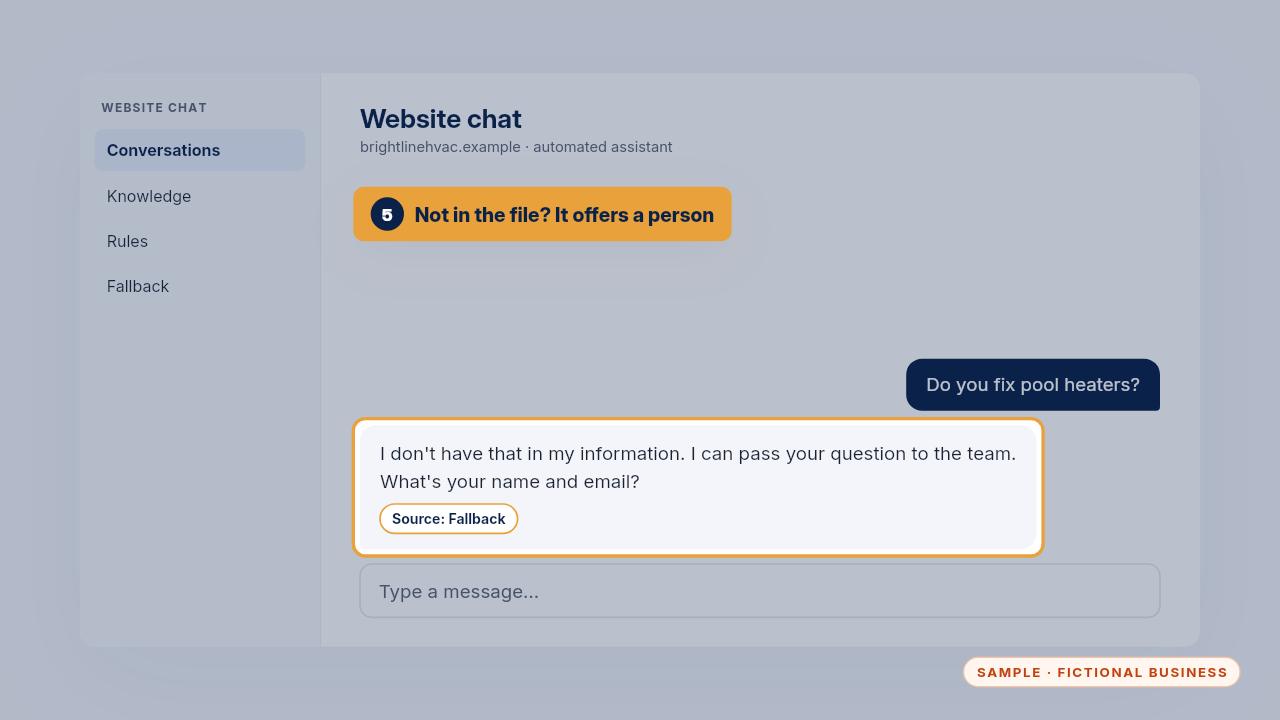
When a question isn't in your file, it says so and offers a person. On the website chat, the fallback collects the visitor's name and email for your team.
Privacy rules
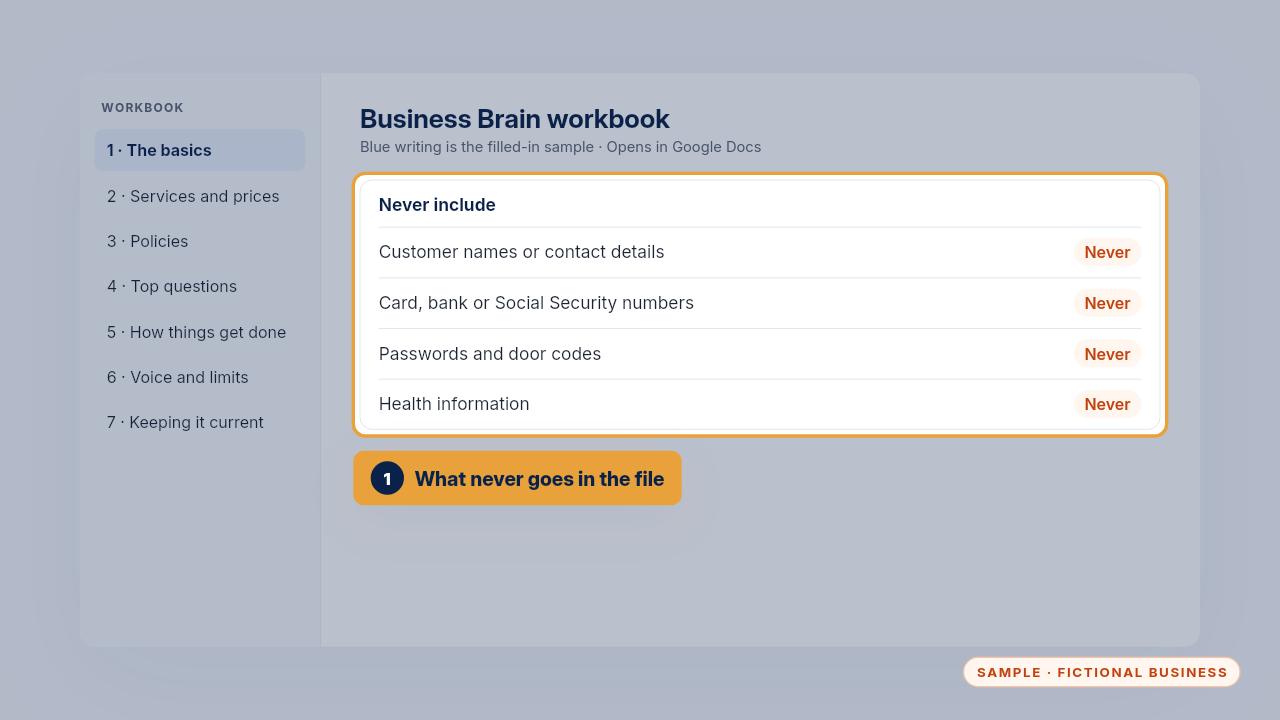
Some things never go in your Business Brain. No customer names or contact details, no card, bank or Social Security numbers, no passwords or door codes, and no health information.
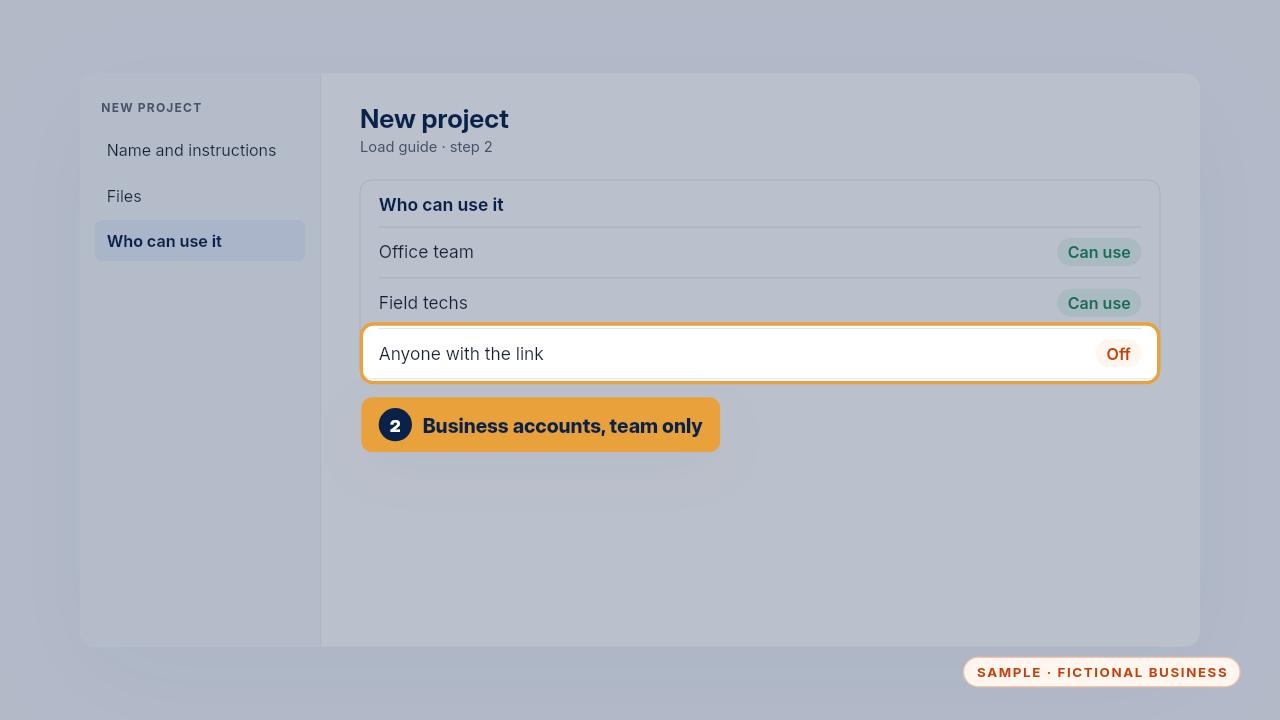
Load it only into business accounts, and check each tool's data settings first. Share it with your team, and keep public links off. Your prices and policies are for your own people.
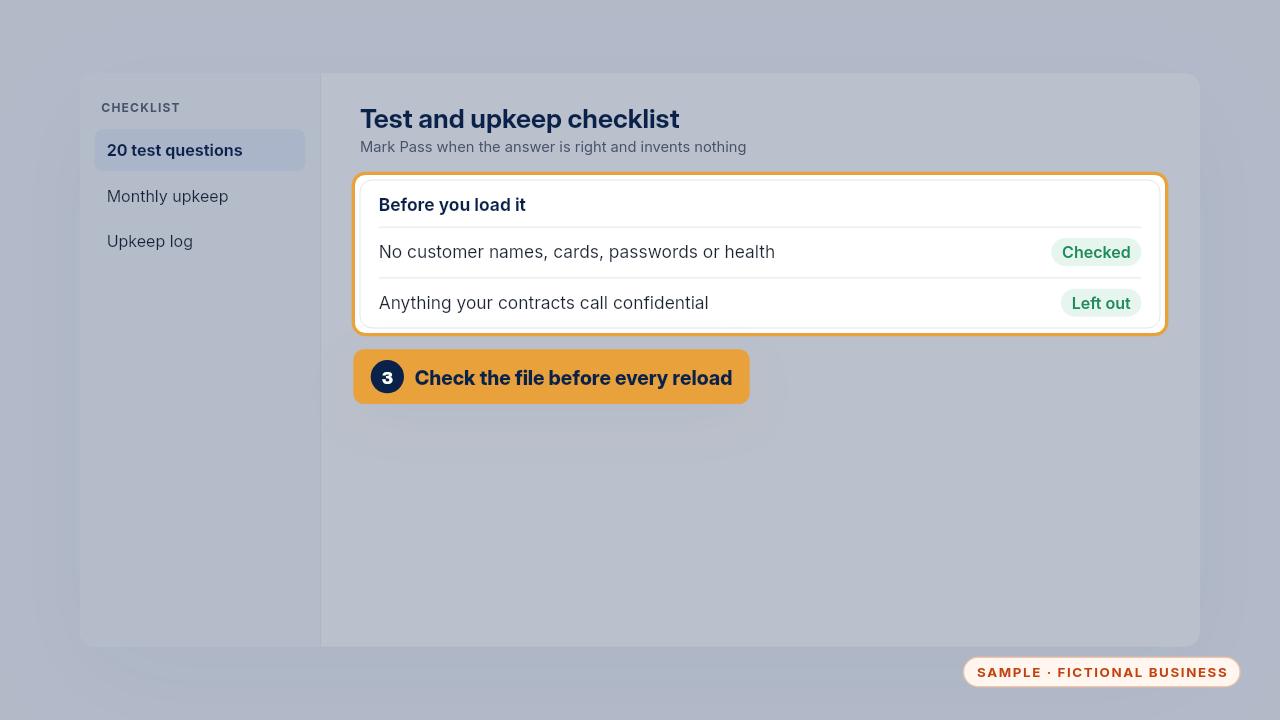
Before every reload, skim the file for anything private that slipped in, and leave out anything your contracts call confidential. The Safe AI Kit sets the same rules for your whole team.
The weekly 5-minute check
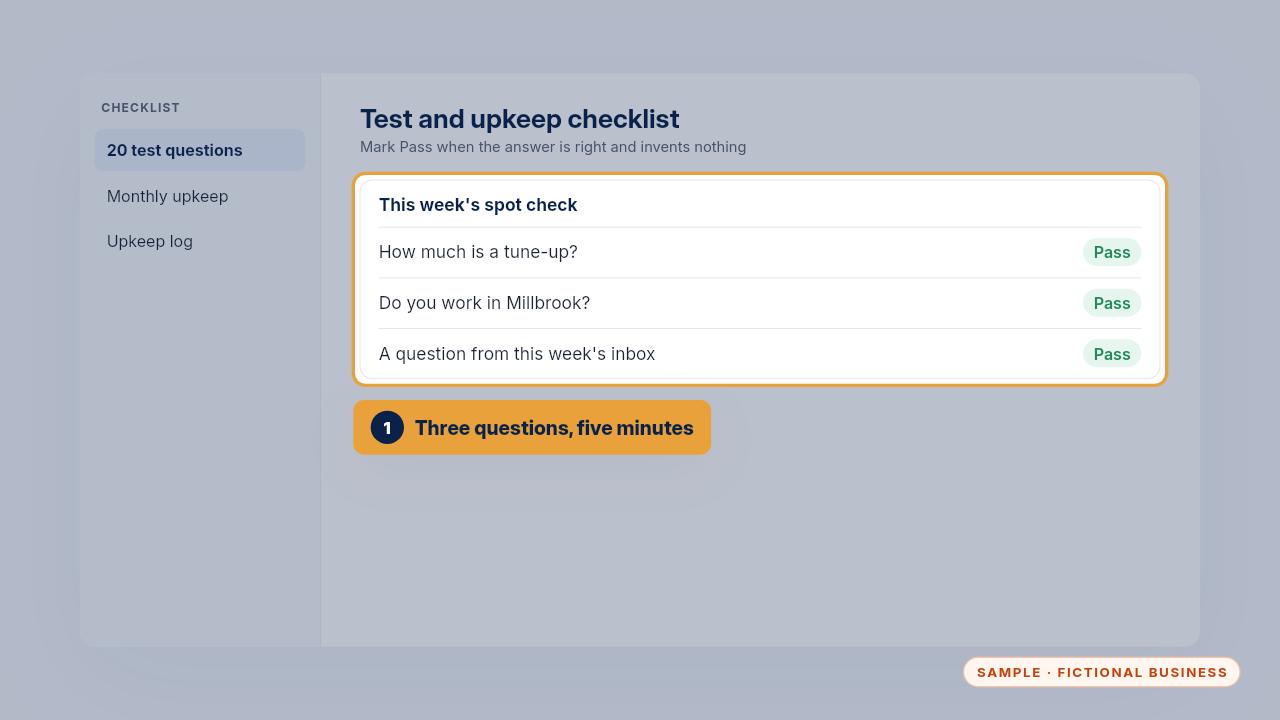
Once a week, take five minutes. Ask three questions from your test list, including one a customer asked this week, and check that each answer names its source.
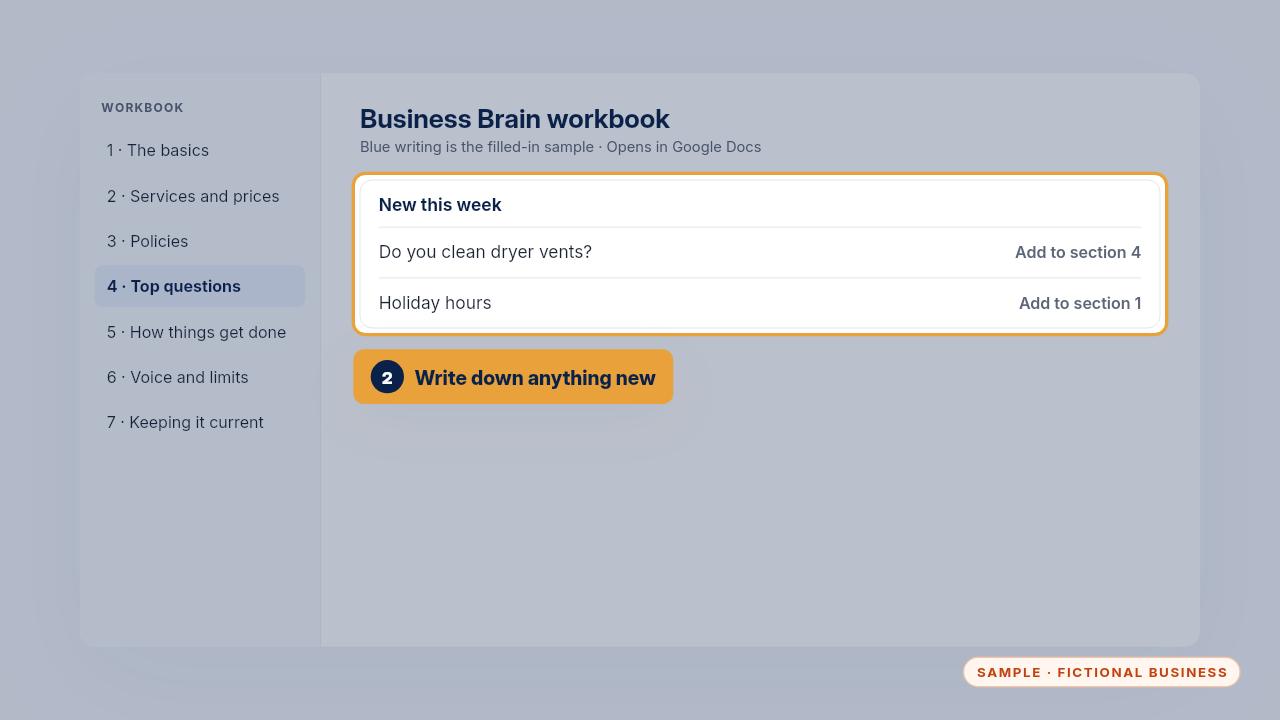
Note any question it couldn't answer, and any price or hours change coming up. Those go into the workbook, ready for the monthly upkeep in your checklist.
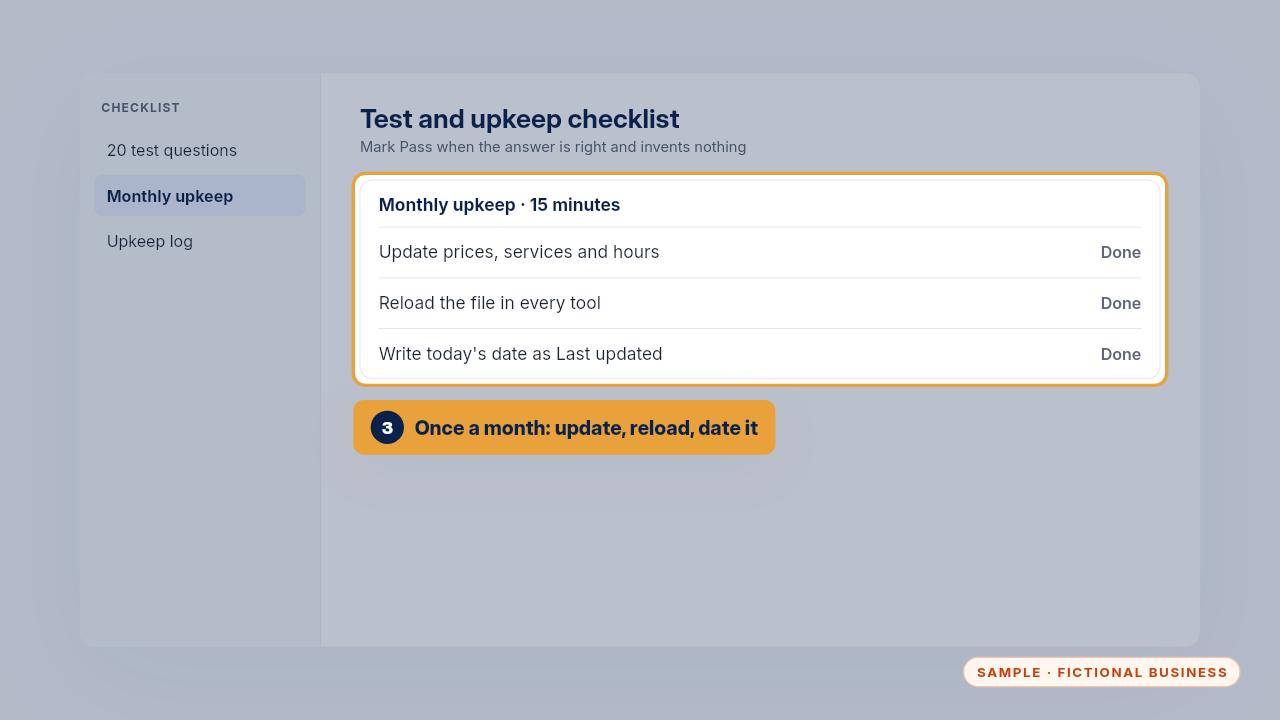
Once a month, the owner of the file does the fifteen minute upkeep. Update it, reload it everywhere, ask each tool three questions, and write the date as last updated in section seven.
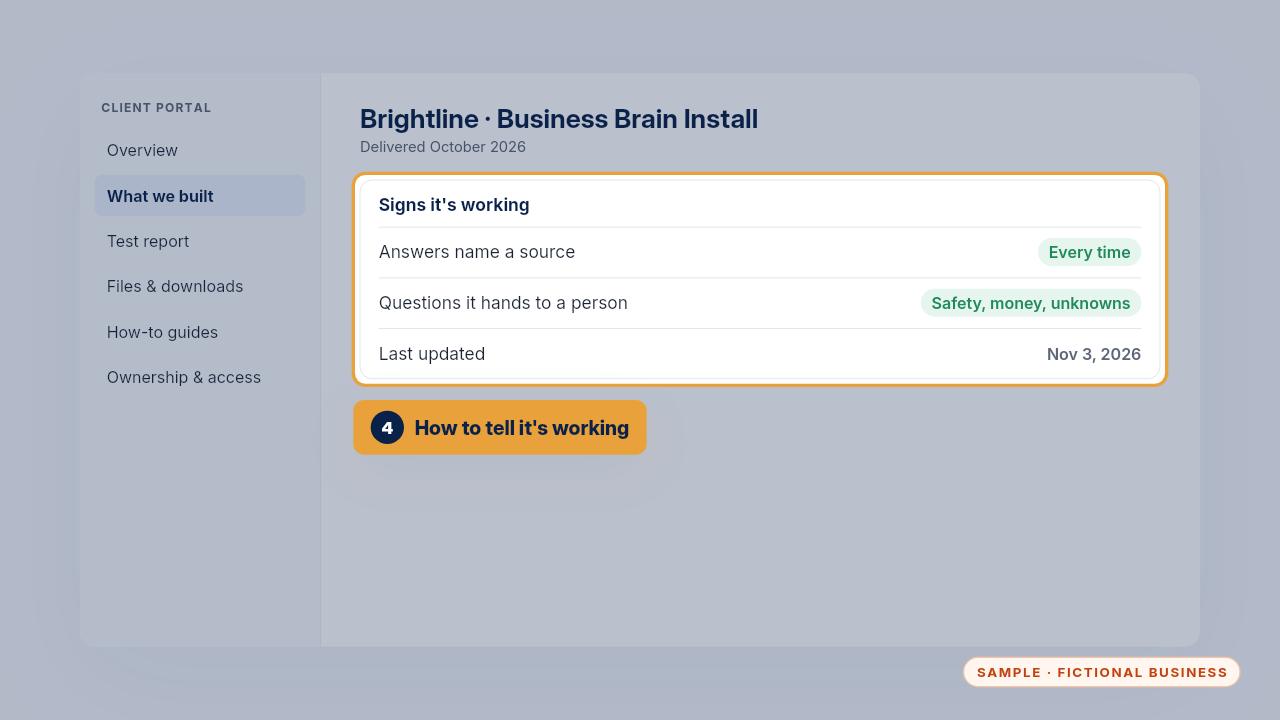
You can tell it's working when answers name a source, money and safety questions reach a person, and your team asks the file before they ask you. On the Install, the portal shows the last updated date.
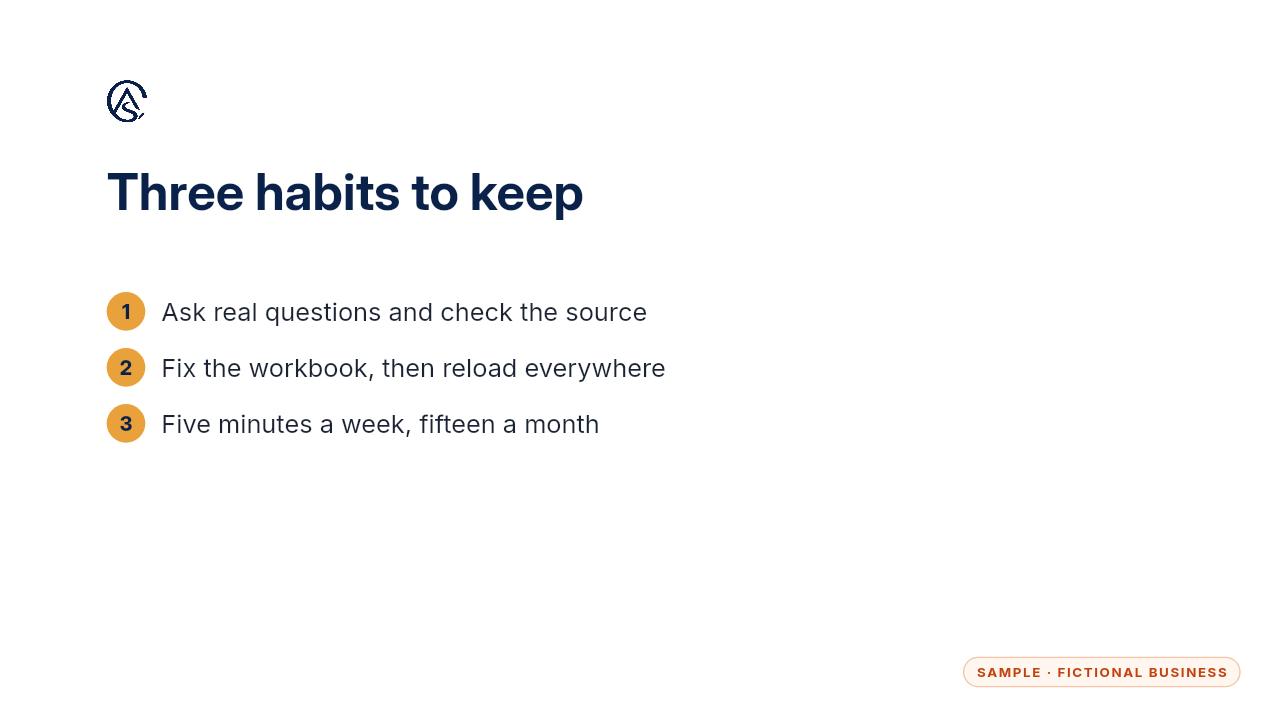
That's the whole routine. Ask real questions and check the source. Fix the workbook when something's wrong, reload it everywhere, and keep the weekly check on your calendar.
Get the Business Brain
Your business knowledge, ready for the AI tools you already use. Every Kit and Install comes with these videos, and an Install adds a walkthrough made from your own setup.