
How-to guides · Quote & Follow-Up Assistant · How do I
How do I update a price?
Change it once, then check the next draft uses it.
Narrated video with captions, 30 s. Made with a fictional company, Brightline Heating & Air (sample · fictional business). Read the transcript · Download the step-by-step PDF
Step by step
Prices change, like fall equipment prices. Here's how to make sure every new quote uses the right one.
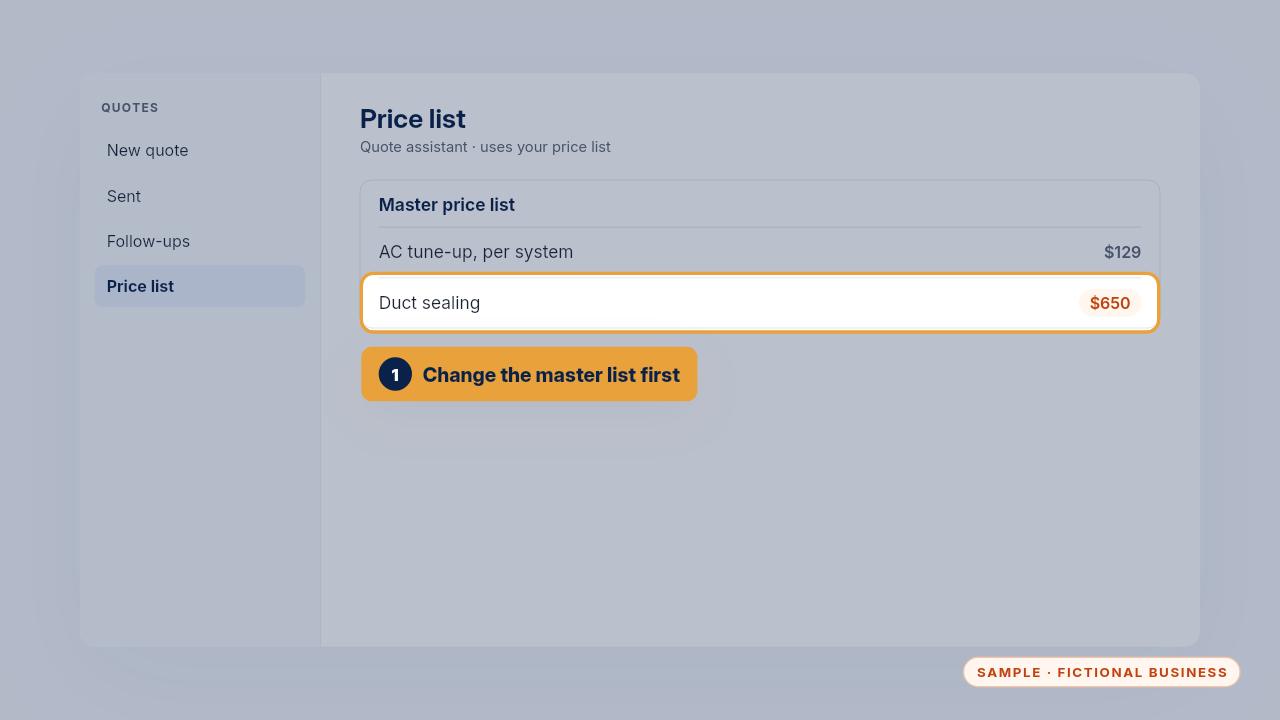
Change the line in your master price list first. It's the only place you edit.
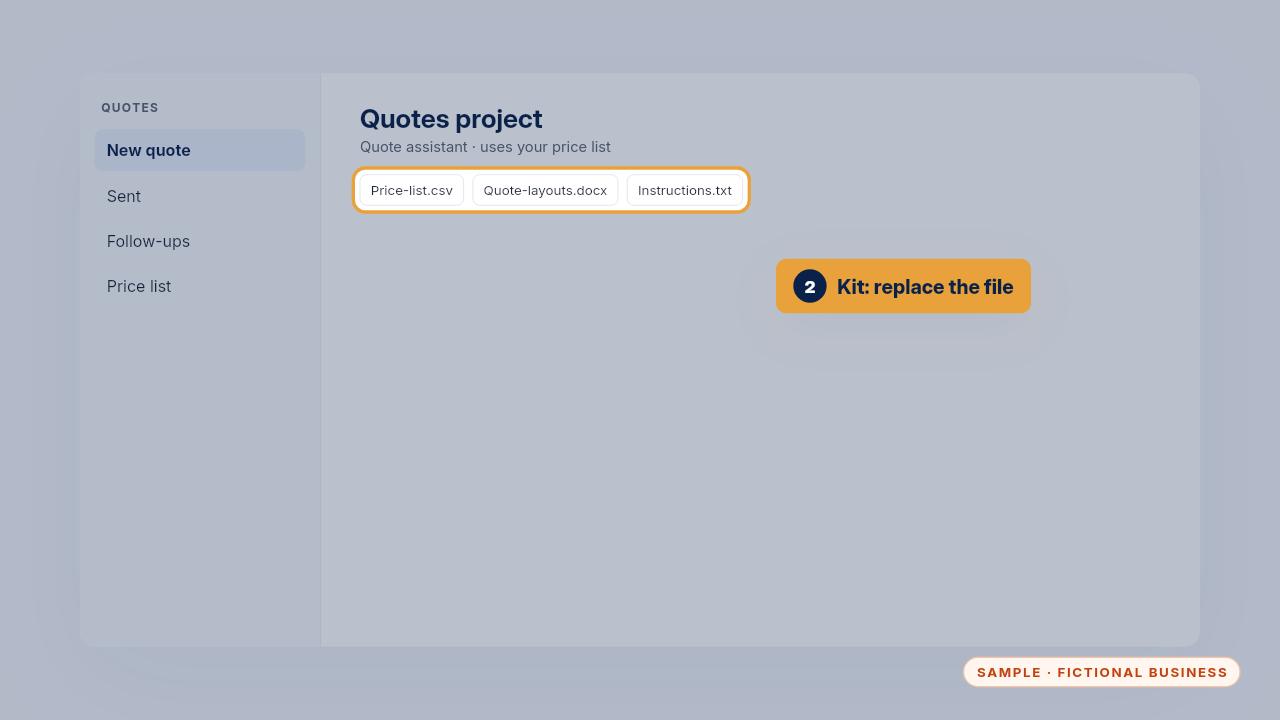
With the Kit, upload the new file to your Quotes project, replacing the old one. With the Install, new quotes use it at once, or text us and we'll change it.
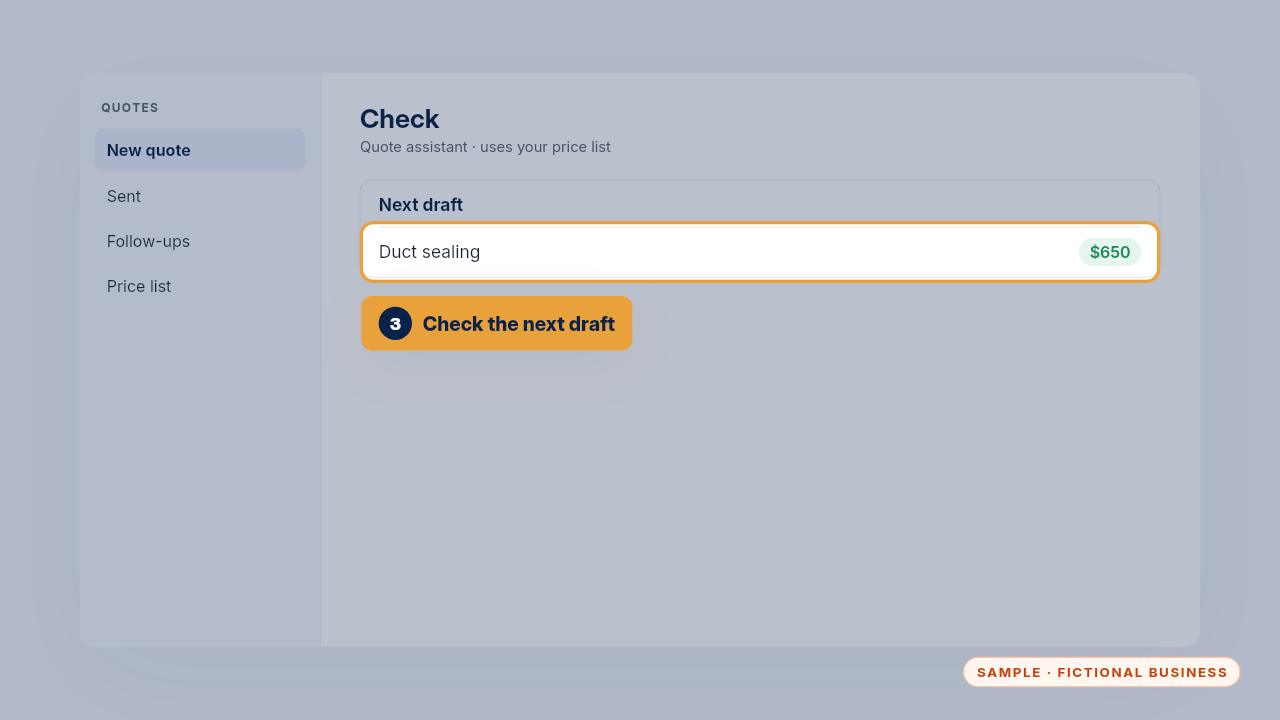
Then draft a job that uses that price, and check the line shows the new number before you send anything.
Get the Quote & Follow-Up Assistant
Quotes drafted from your notes, and unsigned quotes followed up. Every Kit and Install comes with these videos, and an Install adds a walkthrough made from your own setup.