
How-to guides · Business Brain · How do I
How do I load it into a phone answering app?
Paste your facts, set the hand-offs and make three test calls.
Narrated video with captions, 38 s. Made with a fictional company, Brightline Heating & Air (sample · fictional business). Read the transcript · Download the step-by-step PDF
Step by step
Your phone answering app can answer from the same Business Brain.
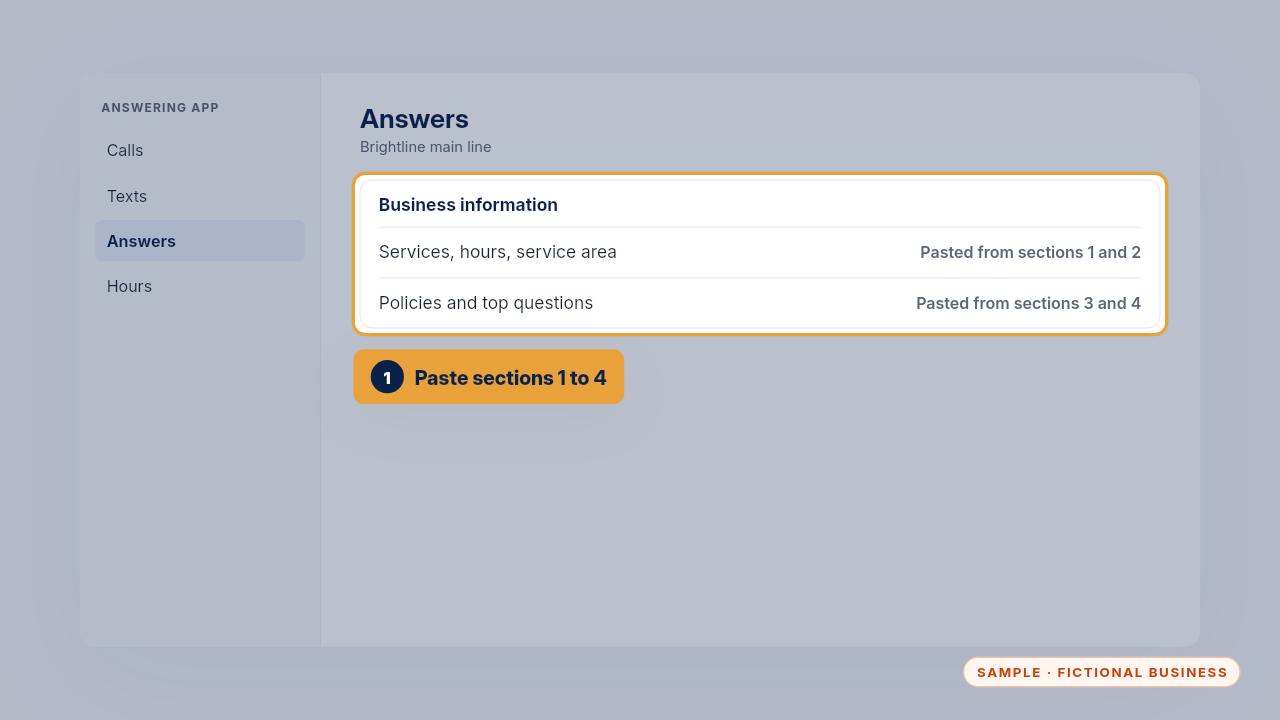
In the app's business information section, paste your services, hours, service area, policies and top questions.
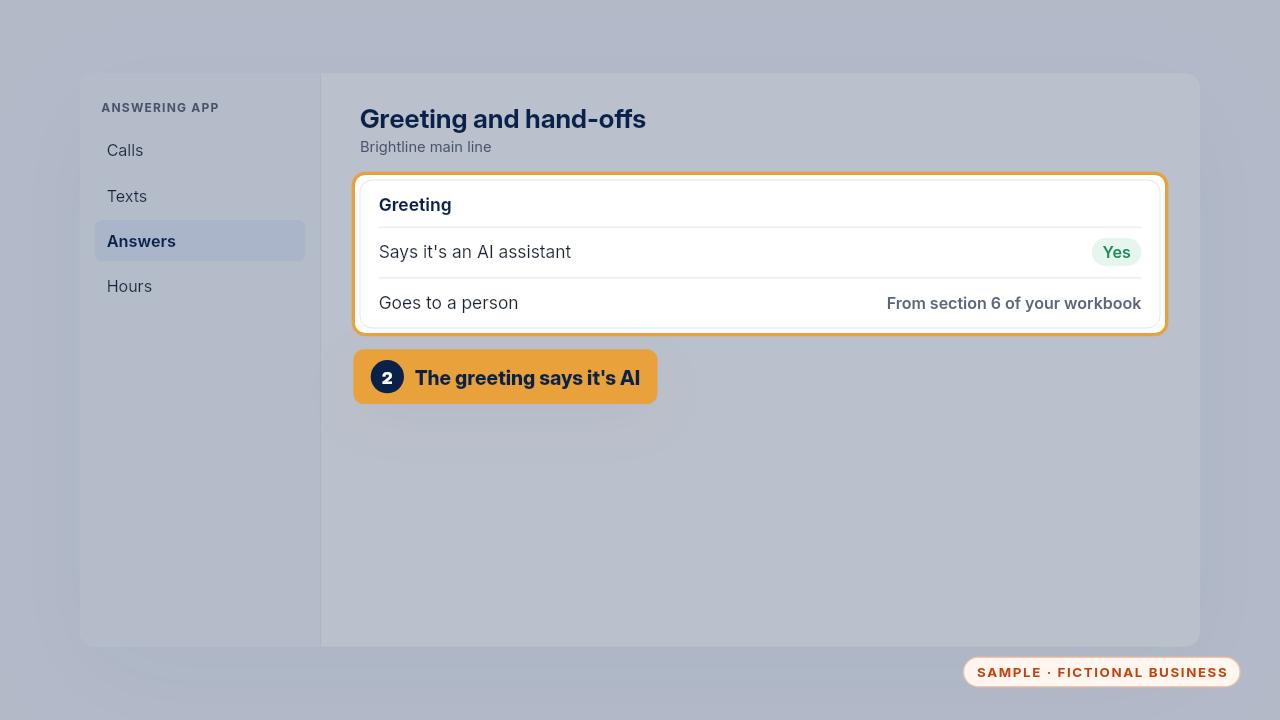
Make sure the greeting tells callers they're talking with an AI assistant. Then set when calls go to a person, using section six of your workbook.
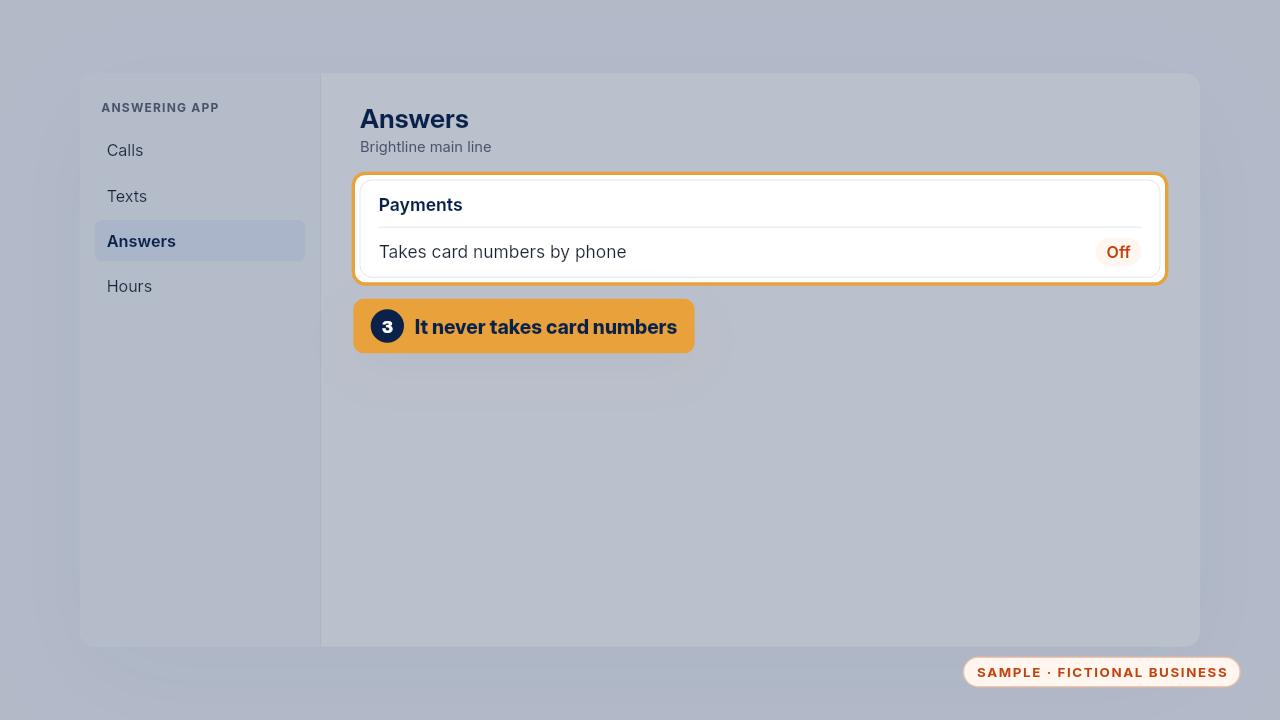
Check that the app can't take card numbers by phone. Payments go through your office, never the AI.
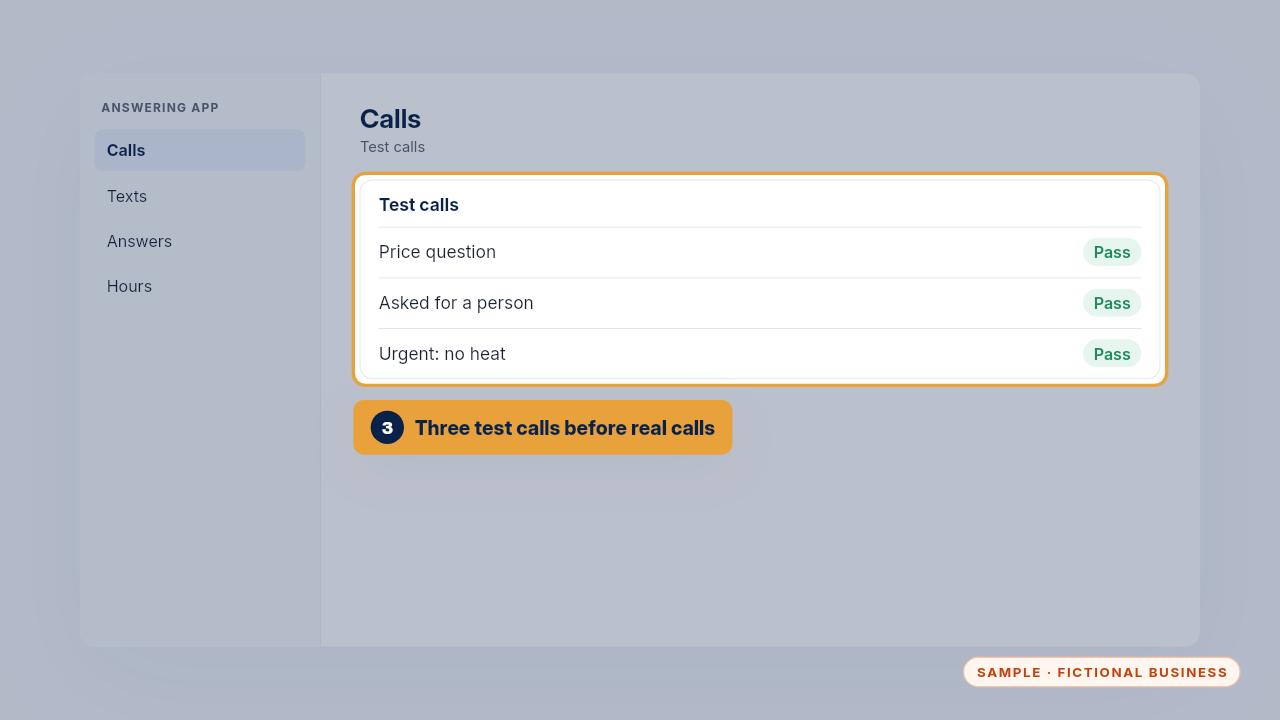
Make three test calls before you forward real calls to it: a price question, a request for a person, and something urgent.
Get the Business Brain
Your business knowledge, ready for the AI tools you already use. Every Kit and Install comes with these videos, and an Install adds a walkthrough made from your own setup.