
How-to guides · Never Miss a Lead · Quick start
Change your hours or answers
Update holiday hours or an answer in the app, then test it with one call.
Narrated video with captions, 43 s. Made with a fictional company, Brightline Heating & Air (sample · fictional business). Read the transcript · Download the step-by-step PDF
Step by step
Closing for a holiday or changing a price? Here's the two-minute update, so callers get the right answer from day one.
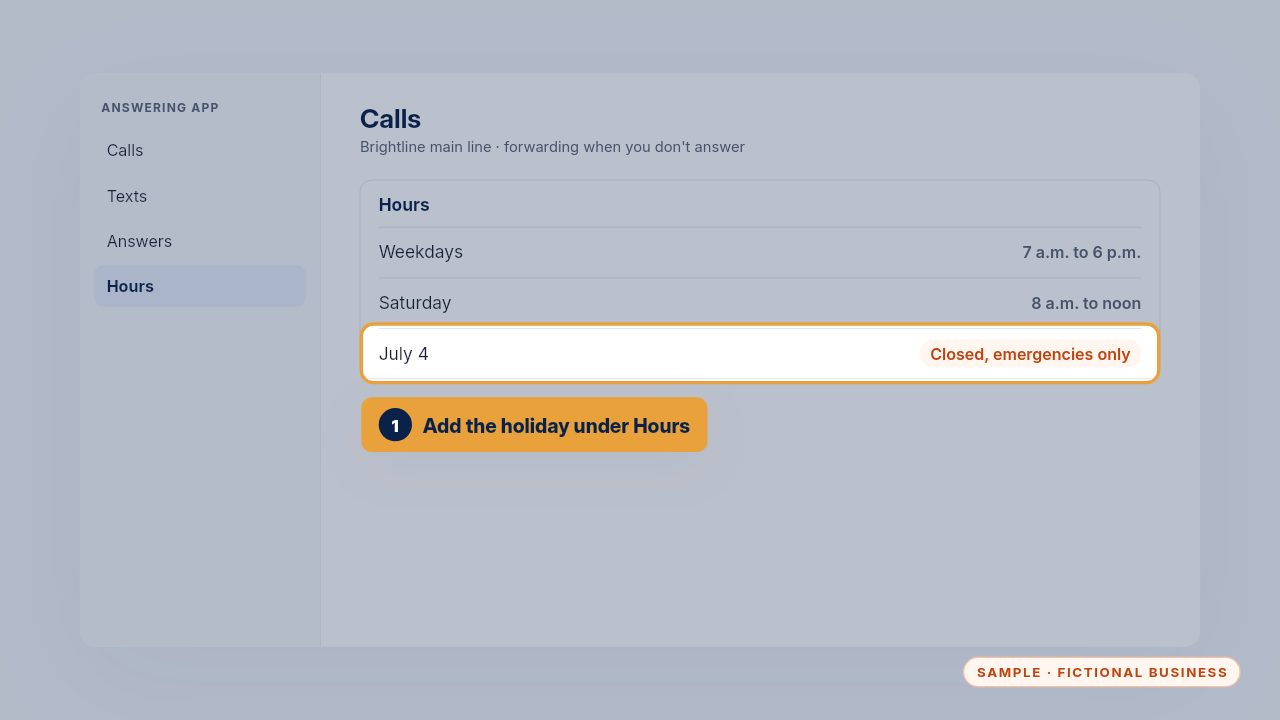
Open Hours and add the holiday. Say whether emergencies still go to your on-call tech, so urgent callers are never left waiting until you're back.
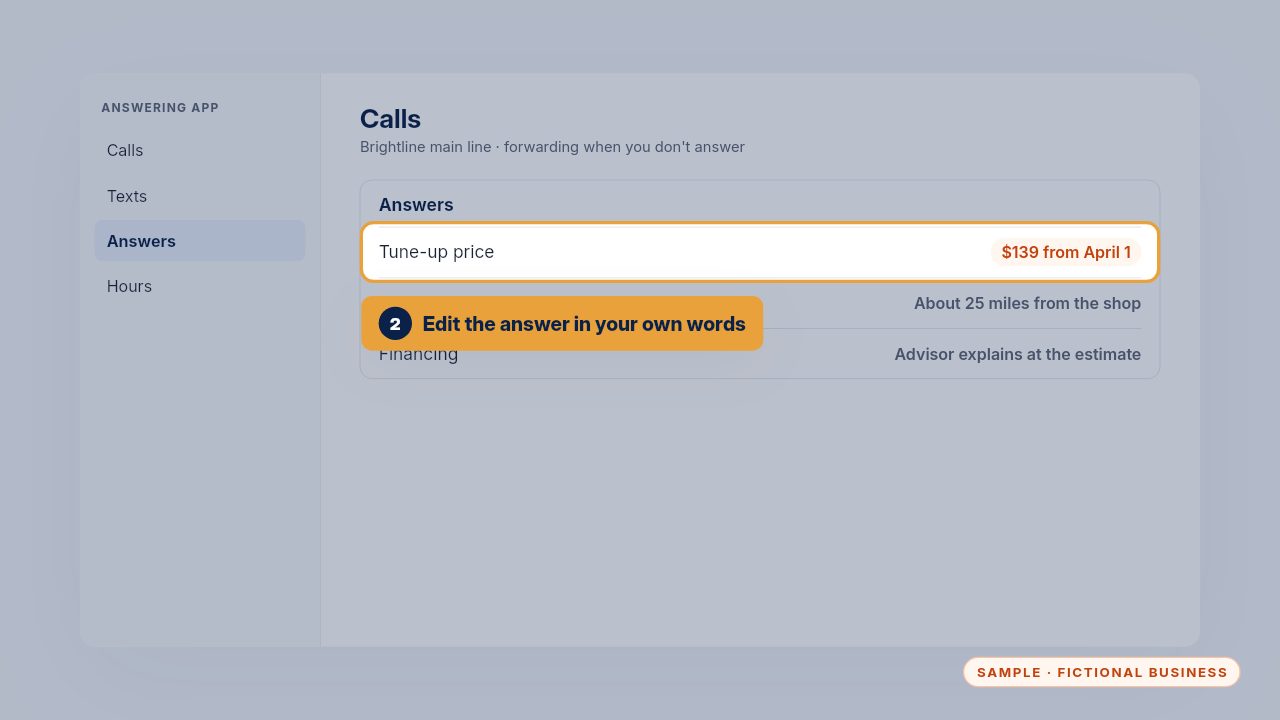
Open Answers to change what the app says. Use the same wording as your Business Brain, so the phone, your website and your team all say the same thing.
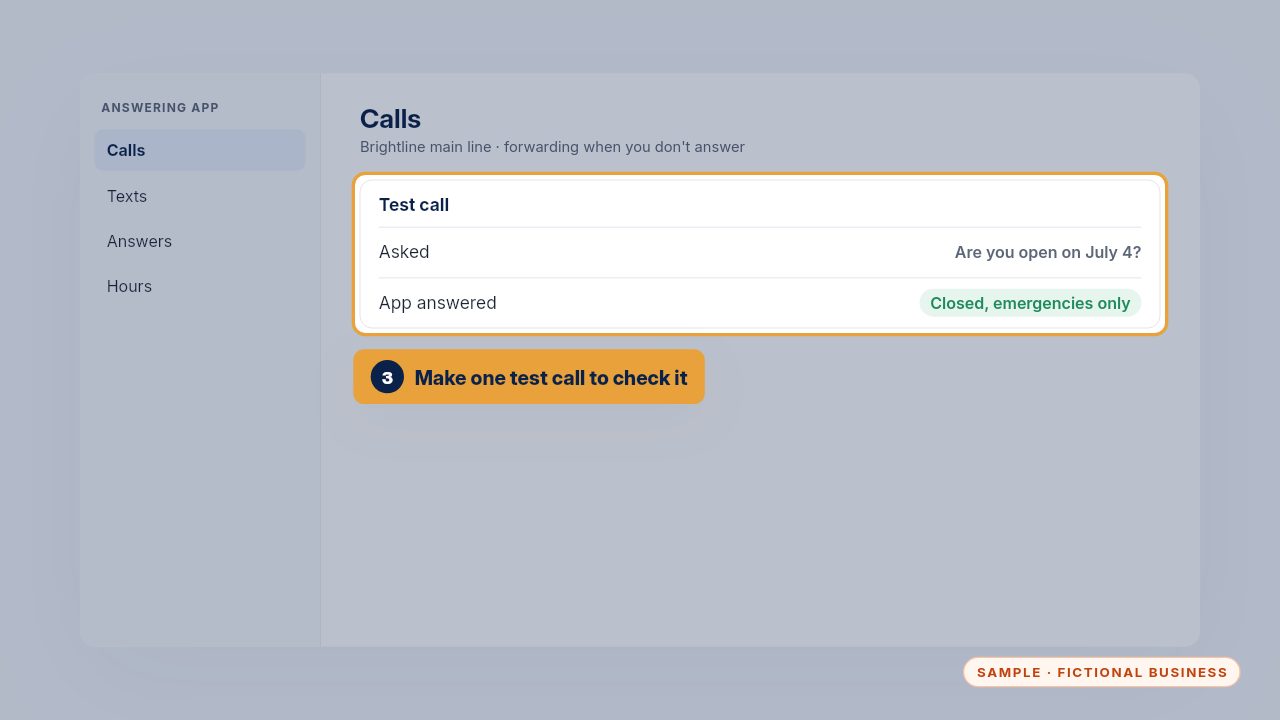
Then make one test call to check. On the care plan, text us the change and we do it for you, and test it too.
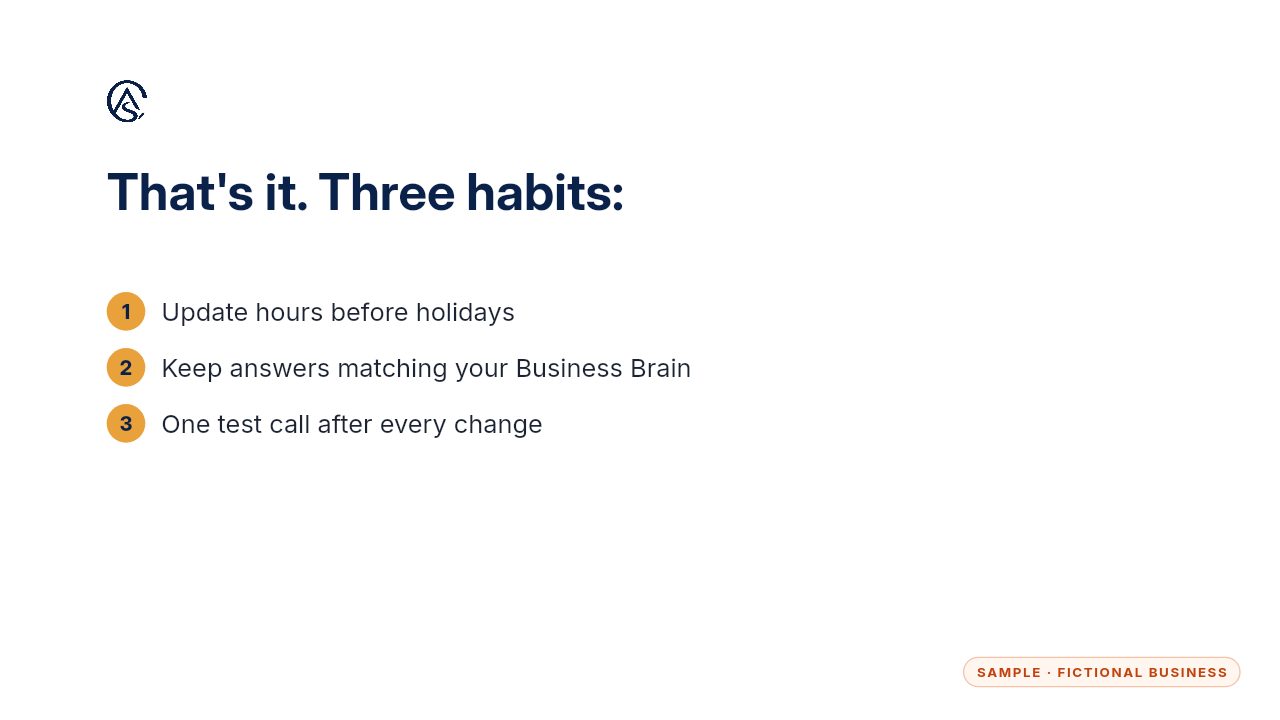
Update early, keep answers matching, and test once after every change.
Get the Never Miss a Lead
Missed calls answered and texted back, in an app you own. Every Kit and Install comes with these videos, and an Install adds a walkthrough made from your own setup.