
How-to guides · Never Miss a Lead · How do I
How do I pause answering for a day?
Turn the app off for a day and back on again.
Narrated video with captions, 30 s. Made with a fictional company, Brightline Heating & Air (sample · fictional business). Read the transcript · Download the step-by-step PDF
Step by step
Some days you'll want every call to ring the office, like a training day with everyone in. Here's how to pause the app, and how to turn it back on.
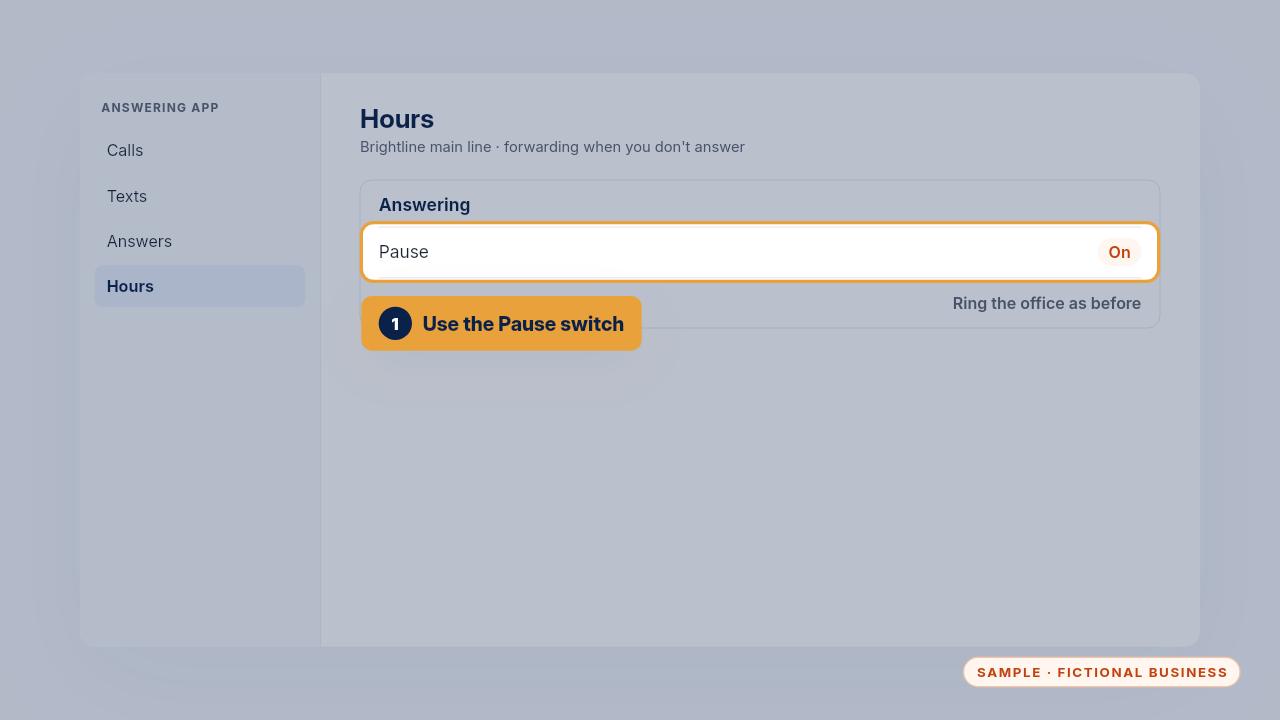
Use the app's Pause switch. While it's on, calls ring the office just as they did before you had the app.
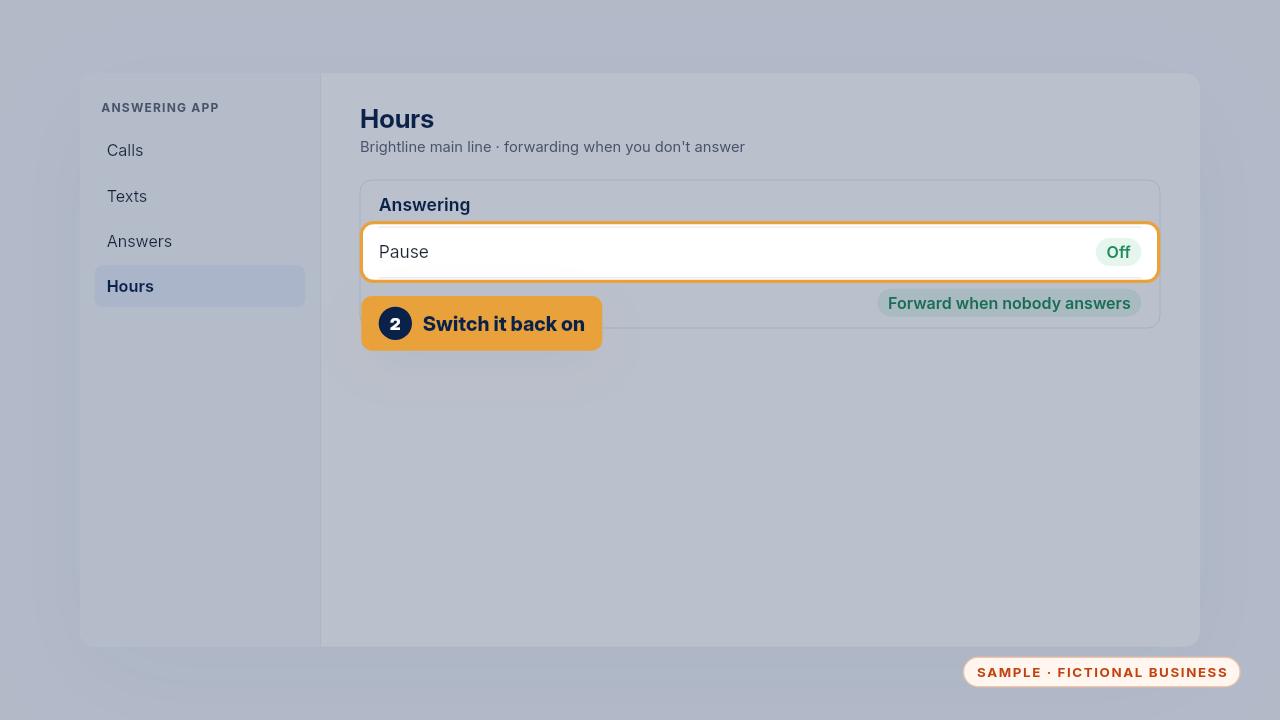
Switch it back on when you're done, or text us and we'll do it. Then make one test call to check it's answering again.
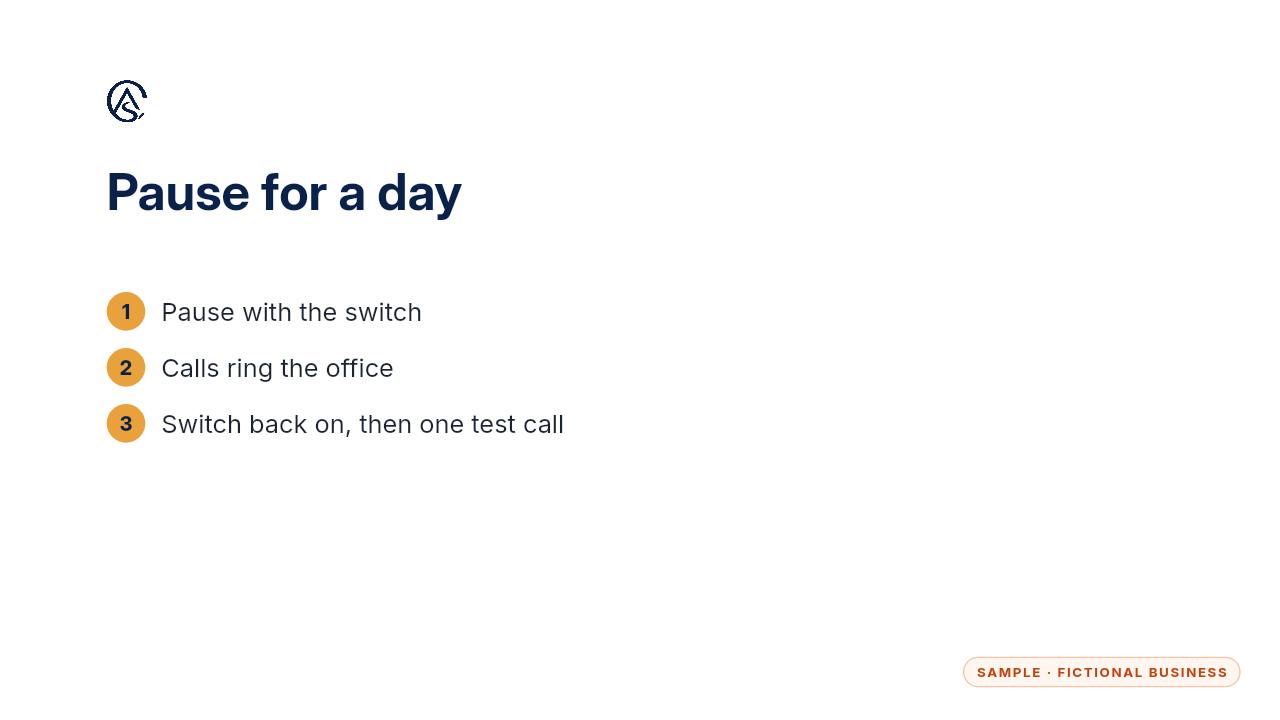
Pause it, let the office answer, then switch it back on and make one test call.
Get the Never Miss a Lead
Missed calls answered and texted back, in an app you own. Every Kit and Install comes with these videos, and an Install adds a walkthrough made from your own setup.